Rokas Kašinskas — Co-founder, VibeViewPublished 2026-10-26Updated 2026-10-26
After an upload, Apple still processes the build, asks about export compliance, adds it to your groups and, for external testers, reviews it. Processing can take minutes or hours, and Beta App Review can take a day. Apple’s own emails go to App Store Connect users, not to your team’s chat. VibeView follows every step after the upload and tells the person who sent the build, and the channel you choose, how it ended.
The notification for a real build, about four minutes after the upload.
What you hear, and when
Each result is sent once, to the person who sent the build, as a notification on the Notifications page with a link to the build.
Result
Notification
Email
Slack and webhook event
Testers have the build (or it is in TestFlight, with no groups chosen)
Yes
No
submission.succeeded
Google Play accepted the build, or Amazon received it for review
Yes
No
submission.succeeded
The upload or TestFlight distribution failed
Yes, with the reason
Yes
submission.failed
Apple needs something from you, for example an export compliance answer, contact details for Beta App Review, or a build Beta App Review rejected
Yes, saying what to do
Yes
submission.needs_action
Apple is taking much longer than usual, or App Store Connect isn’t answering
Yes
No
submission.needs_action
A build that needs you and then reaches testers sends two notifications: one for the wait, one when testers have it. A different wait later, for example Beta App Review rejecting the build after you answered export compliance, is a new notification. A build you stop following sends nothing more.
Set it up
Notifications and emails need no setup: they go to whoever sent the build, from the dashboard, the CLI or CI.
Send a build. From the dashboard, choose Submit to TestFlight on a production build. From the terminal:
Or let the build send itself. With CLI 0.62.0 or later, add --auto-submit to a production cloud build. VibeView sends it to TestFlight as soon as it succeeds, with the groups in vibeview.json, even if you close your laptop:
Tell your team’s channel too (optional). In Settings → Integrations, add a Slack channel or a webhook and choose the Stores events. A new webhook gets submission.failed and submission.needs_action by default; add submission.succeeded to hear about every build that reaches testers.
Follow it on the build’s page
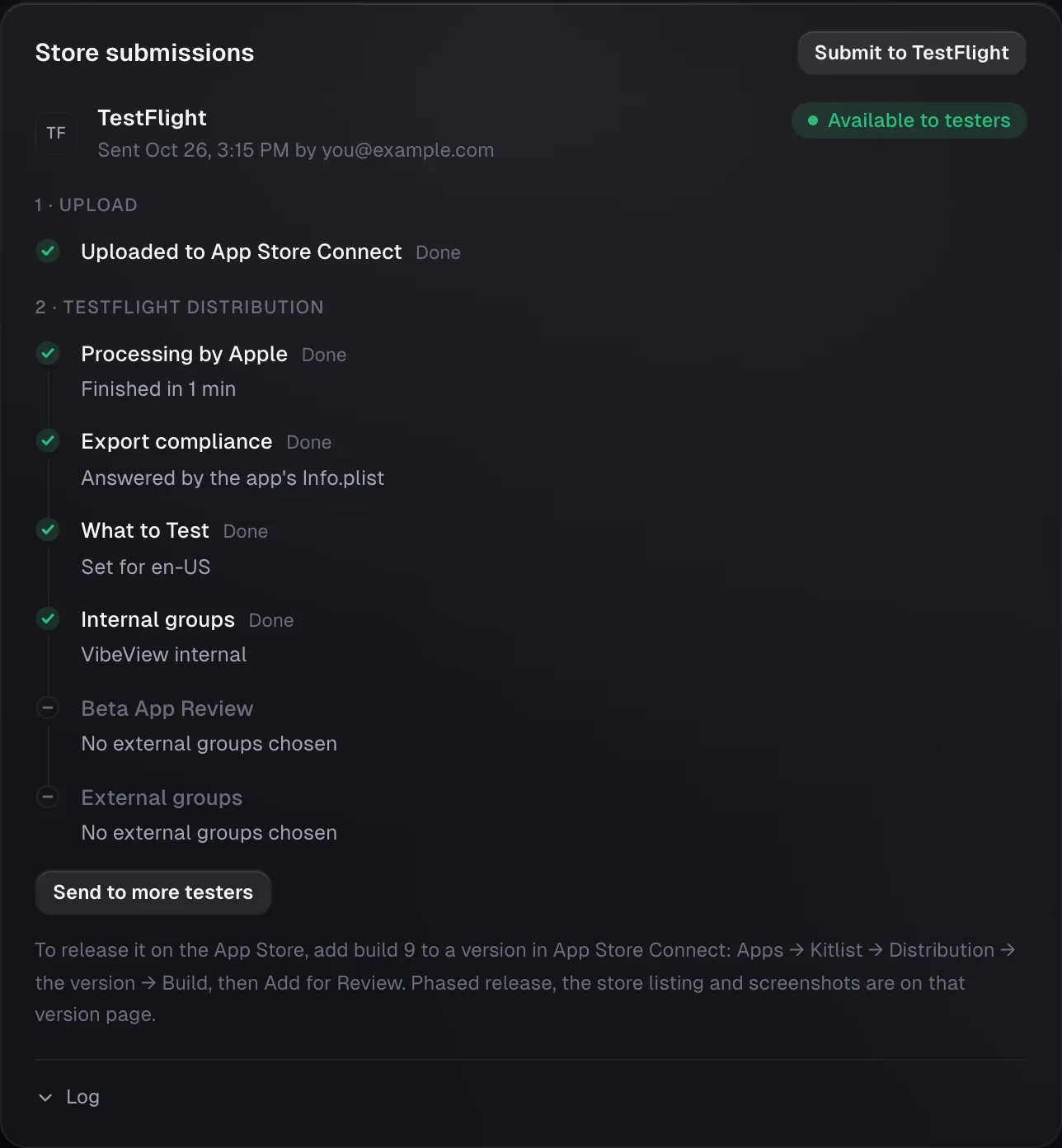
The build’s Store submissions card shows each step as Apple works through it: the upload, processing, export compliance, What to Test, your internal groups, Beta App Review and your external groups. When something needs you, the card says what and where, with Check again once you’ve fixed it. Send to more testers adds the build to more groups later without uploading it again, and its result is told the same way.
Every step after the upload, on the build's page.
In CI
A pipeline has two ways to know:
Let the job wait.vibeview submit --wait-distribution keeps the command running until the build is with your testers, in Beta App Review or needs you, and exits with a code for each. GitHub Actions to TestFlight, no Mac runner has the full workflow.
Let the job end at the upload.vibeview build --cloud --production --auto-submit ends once Apple has the upload, and the notification, email or Slack event tells you the rest. That keeps CI minutes down while Apple processes the build, which can take an hour or more.
Google Play and Amazon
The same notices cover Google Play and the Amazon Appstore. For those stores the result is the upload itself: the notification says the build is on its Play track, or that Amazon received it for review, and a failed upload sends an email with the reason.
What stays in App Store Connect
VibeView follows a build until your TestFlight testers have it. Submitting a version for App Store review, phased release, the store listing and screenshots stay in App Store Connect; the build’s card shows where to go once it’s in TestFlight.