Find bugs in your app without writing tests
Rokas Kašinskas — Co-founder, VibeViewPublished 2026-10-11Updated 2026-10-13
Tests only check what someone thought to check. The login works, the checkout works, the settings screen saves. The bugs that reach users are usually somewhere else: a button on a screen nobody tested, an error message that only shows on an empty account, a sheet with no way to close it.
Explore covers that gap. You give it a device and some time, and it uses your app the way someone who has never seen it would, without a script. Afterwards you read a short list of findings instead of a long test log. Nothing becomes a test unless you choose it.
Open Create test on the Tests page and switch to the Explore tab, or click Explore this app on the app’s page. Then choose three things:
Click Start exploring and watch it work, or go do something else and come back to the results.
Each finding is one of five kinds:
The list stays short. A problem the AI runs into again is shown once, with a count (“Seen 3 times”), and permission prompts and system alerts are not reported at all.
Show me on a finding plays the run’s video from just before it happened, so you see how the AI got there as well as what went wrong.
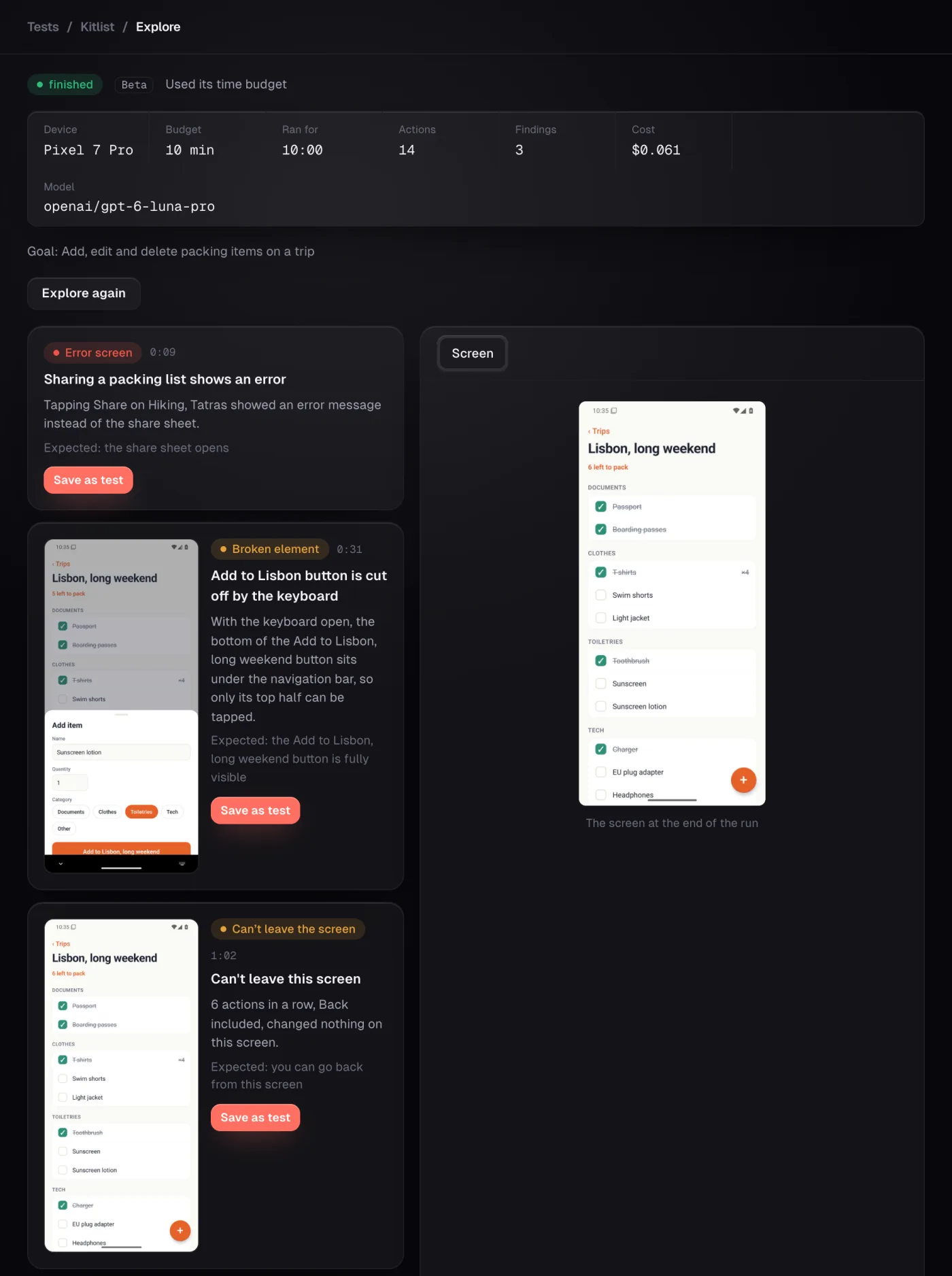
Once you fix a bug, you want a test that catches it if it comes back. Save as test builds that test from the finding. It opens Review steps with one step for each thing the AI did on the way to the problem, then a Verify step describing what a working app would show. Edit anything you like, and nothing is saved until you click Save.
The new test starts with a head start. Explore already found the route, so the steps you leave as they are replay that route on the next run without calling the AI. Only steps you change are worked out by the AI again, and once a run passes, VibeView saves those steps too (how that works).
The AI follows a few firm rules:
{{password}}.Explore uses the AI on every turn, so it needs usage credit or your own AI provider key. It is not covered by the Free plan’s free test. With VibeView-provided AI, the run page shows the usage credit the run actually used. With your own key, VibeView charges nothing for the AI. The device time counts toward your streaming minutes like any session. See Usage credits.
A run stops when its time is up, when it reaches the action limit for that length, when the AI has covered everything it can reach, or when you click Cancel. A spending safety limit, based on the model’s price, also stops a run that gets stuck in a loop. Whatever it found before stopping is kept.
No. Each finding has Save as test, and nothing is saved until you review the steps and click Save.
Yes, on Apple TV, Android TV and Roku. The AI moves focus with the remote, and only reports a screen it can’t leave after it has tried Back.
Anyone in your organization with the Developer or Admin role.
The run ends early once the AI has covered what it can reach. The findings so far are kept.
Open a live iOS simulator, Android emulator, Apple TV, Android TV or Roku in your browser.
Start free