Rokas Kašinskas — Co-founder, VibeViewPublished 2026-10-11Updated 2026-10-13
A red test with an error message is the start of an investigation. Was it the app or the test? Did the screen load slowly, or not at all? What did the app log just before? Usually the answer means running the test again on your own machine and watching closely.
The run page answers those questions straight away. The steps are on the left and the device is on the right, so you can see what each step did, when it did it, and what the app was doing at the time.
Watch it live, or replay it later
While a run is going, the device on the run page is live, so you can watch the test work. Live viewing is for the person who started the run and admins, and it’s view-only, so nobody can nudge the test along by hand.
When the run finishes, the device becomes the run’s video. Each step has a button, such as “Step 3 · 0:07”, that jumps the video straight to it. Seeing a failed check is a click, not a scrub through a ten-minute recording.
See every step’s reasoning
Open a step to see what it did: reading the screen, tapping, typing, scrolling, waiting for the screen to settle, and the check at the end. Details shows the full record. For a replayed step, that is the element it was meant to use and the one it actually used. For a step the AI (beta) carried out, it is the AI’s reasoning, every action it took, and the tokens it used.
If your test has a setup that runs first, such as a sign-in, its steps are grouped in their own Setup row, so a failed login doesn’t get mistaken for a failed checkout.
Read the app’s log by step
The Logs tab shows what your app printed during the run, and every line is labelled with the step it belongs to: “Step 3”, “Setup: Log in” or “Before step 1”. You can see what the app said while a step ran, not search the whole log by timestamp.
Filter by level (Error, Warning, Info, Debug), search with Filter lines, and Copy what’s on screen. The page also tells you when lines were missed or when the app wrote nothing at all.
When a step fails
The run page tells you what kind of failure it was, because each one needs a different fix:
Check failed: the app didn’t show what the test expected.
Screenshot drifted: the screen looks different from its saved baseline.
Couldn’t do this step: the test couldn’t carry the step out on the screen it found.
Setup failed: something in Before this test failed first.
Stopped by VibeView, not your app: the device session ended or the AI service didn’t answer, so it isn’t your bug.
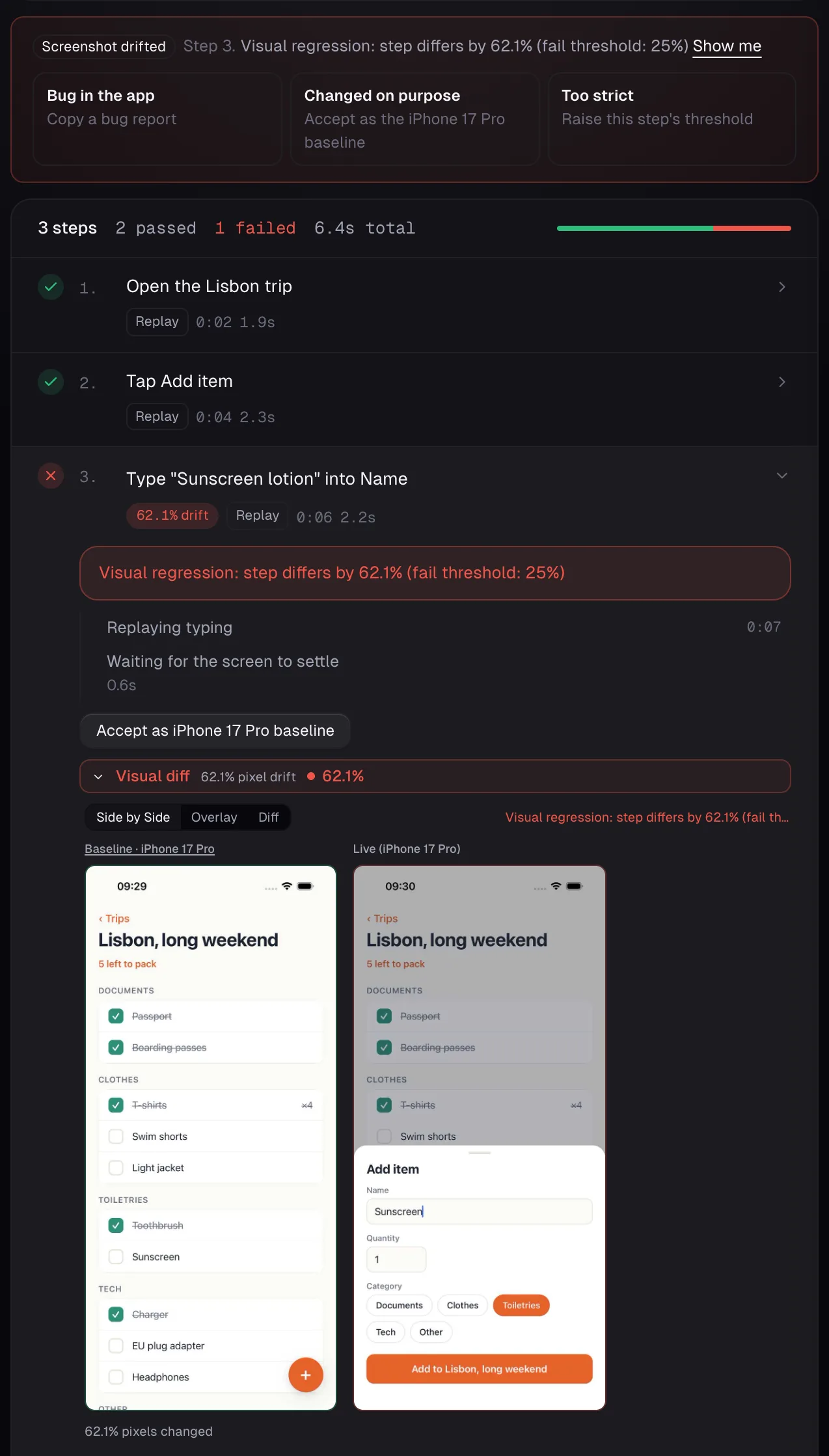
The failure panel shows the explanation and the log lines from that step, and Show me jumps the video to the moment. Then it offers the next steps that make sense. Bug in the app copies a bug report. Changed on purpose accepts a new screenshot as the baseline. Expectation changed, Test is wrong and Too strict open the test at that step so you can fix it.
A Screenshot drifted failure: the panel names the step and offers the actions that fit, with the baseline and live screens side by side. The run is example data.
A bug report you can paste straight in
Bug in the app copies a Markdown report with everything a developer needs to start: the test and what failed, the app, build and device, the steps to reproduce up to the failure, what was expected and what happened, the log lines from that step, and a link to the run. Paste it into Jira, Linear or a GitHub issue as it is.
It only appears when the app is at fault. A failure caused on VibeView’s side never offers it, so nobody files a bug against your app for a problem it didn’t cause.
Good to know
Videos and logs are kept for 30 days, then deleted.
The video has no sound.
Logs come from your app’s own output, so an app that logs nothing shows an empty Logs tab.
The video isn’t edited. Secrets are masked in logs and results, but a secret typed into a field that doesn’t hide its text can be seen in the video.
Frequently asked questions
Do I have to turn recording on?
No. Runs are recorded automatically. If a recording fails, the run page shows the screen at the
end of the run instead.
How long are videos kept?
30 days, the same as the app log.
Can I see the log for just the failing step?
Yes. The failure panel shows the log lines from that step, and Filter lines narrows the Logs
tab.