Rokas Kašinskas — Co-founder, VibeViewPublished 2026-10-11Updated 2026-10-13
Most mobile tests start the same way: pick a framework, learn its selectors, set up simulators, and write a page of code to check something you could have said in one sentence. Many teams stop there and test by hand instead.
Describe starts from the sentence. You say what the test should do and what it should check, and the steps are written for you in plain language you can read and edit.
1. Describe what to test
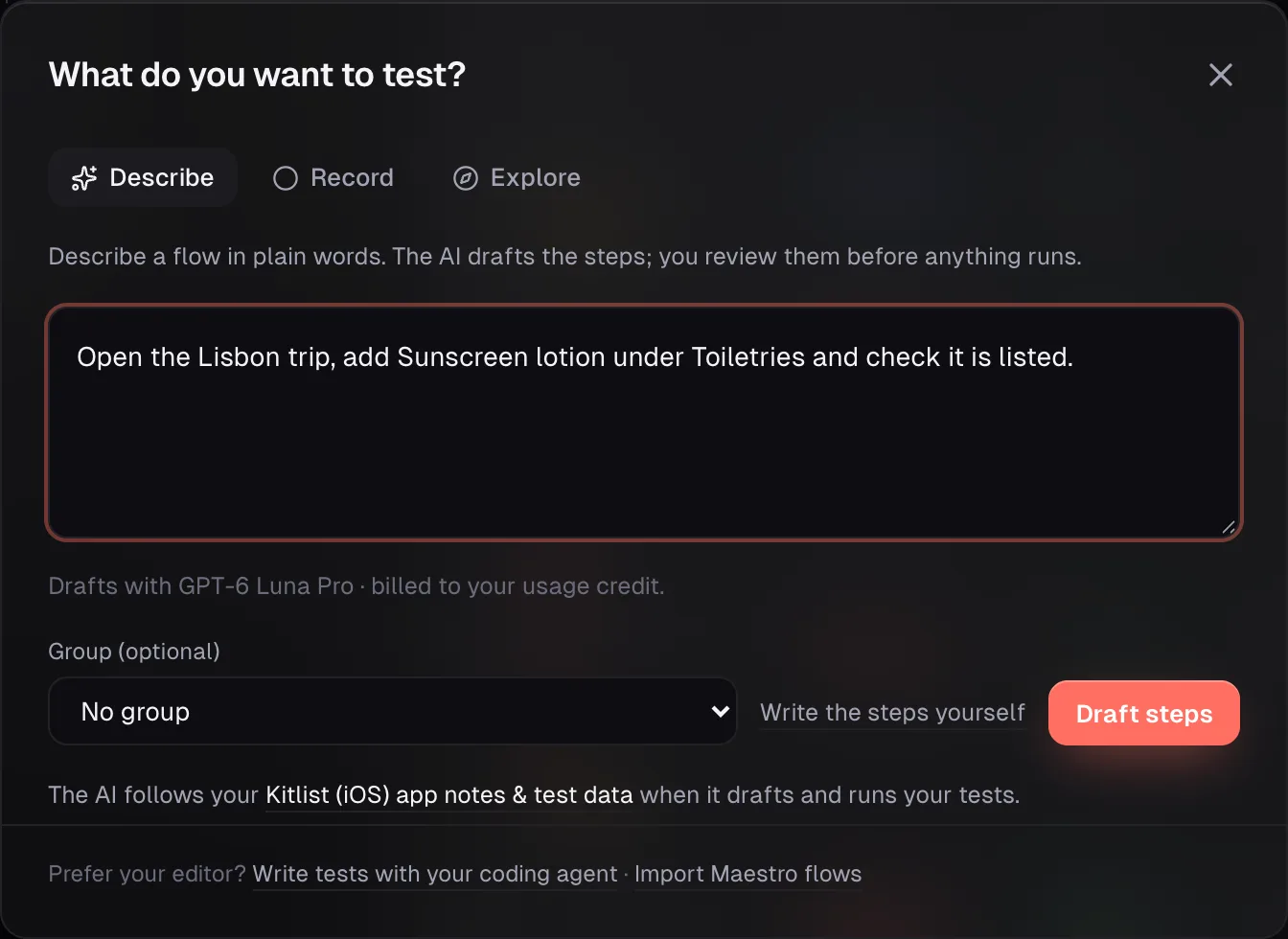
Open Create test. On the Tests page, click Create test. Describe is the first tab.
Write the journey and the result. One or two sentences is enough: “Open the Lisbon trip, add Sunscreen lotion under Toiletries and check it is listed.”
Click Draft steps. The AI reads your sentence and your app notes and drafts the steps. Nothing runs on a device yet.
The line under the box shows which AI model will draft the steps and who pays: your usage credit, your own AI provider key or, on the Free plan, your organization’s free test. If you would rather not use the AI at all, Write the steps yourself opens an empty test.
Describe: a sentence in, steps out. The line under the box names the model and who pays.
2. Read the steps before you save
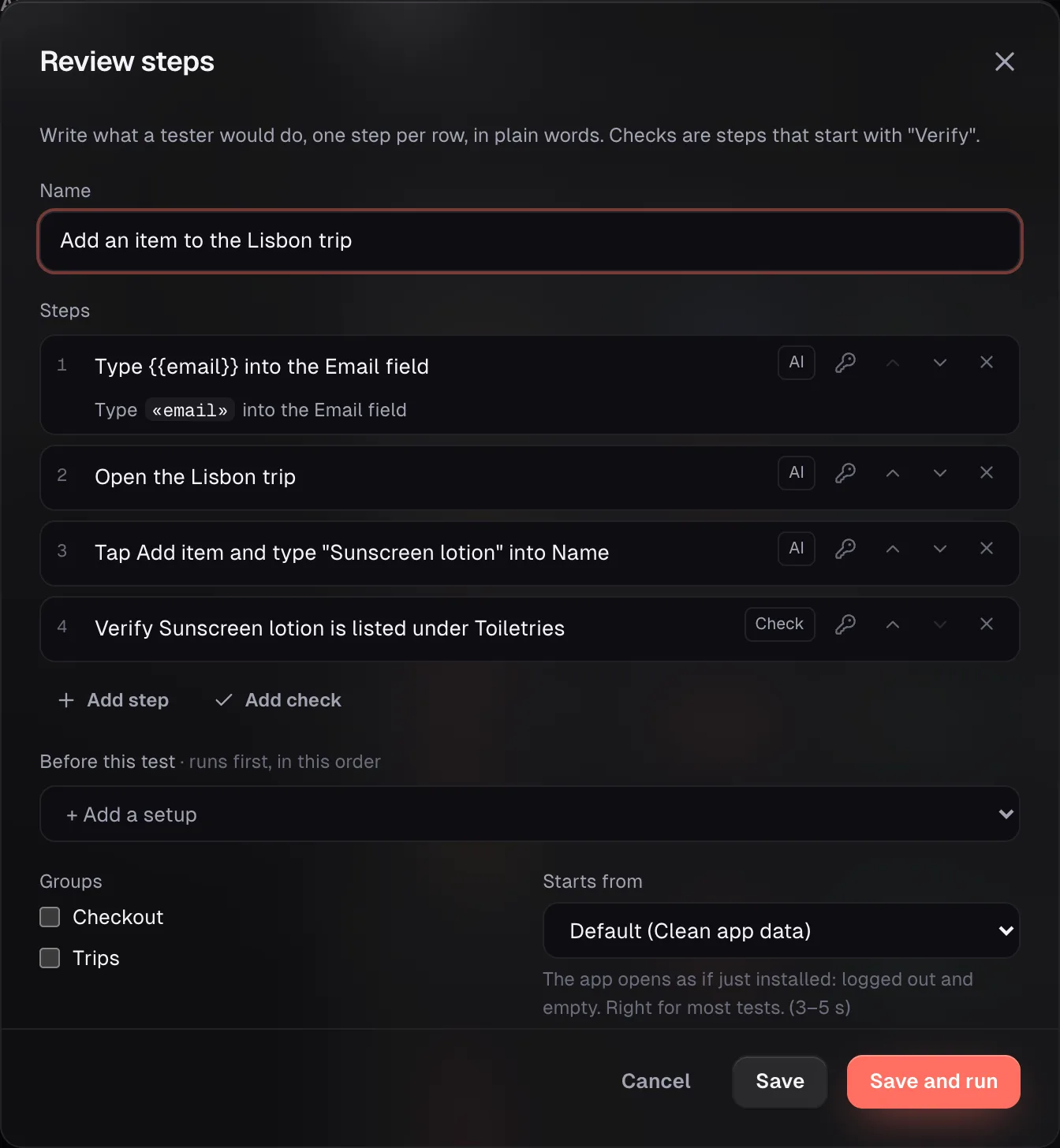
The draft opens on Review steps, the same screen that every new test goes through, however you created it. This is where you make the test right:
Edit, add or remove steps. If the AI guessed a screen name wrong, fix the words.
Add a check with Add check: what should be on screen when the step is done.
Pick a setup under Before this test, such as a sign-in test that runs first.
Choose how it starts with Starts from, and which groups it belongs to.
Each step shows where it came from: AI, Recorded or Check.
Review steps: each step labelled AI, Recorded or Check, and a test data key shown as a chip.
Keep passwords out of the steps. Save the account once as test data under App notes & data, mark the password secret, and drop it into a step as a chip. The AI knows the name of the value, never the value itself, and runs show it masked.
3. Run it
Save and run opens the Run dialog. Pick one device or several and click Run. Each device gets its own session, and the run page shows every step as it happens with the device beside it (what a run shows you).
The first run uses the AI to carry out the steps. When it passes, VibeView saves the route it took, so later runs replay those steps without calling the AI (how that works). You describe the test once and pay for the AI on the first run, not every run after it.
Describe or record?
Record is the second tab in Create test. It opens a live device and saves what you do as you use the app. Describe is quicker when the journey reads well as a sentence. Record is better when a step is hard to put into words, like a precise drag. Both end on the same review screen.
Good to know
Drafting is AI (beta). Read the draft before you save it. That is what the review step is for.
Phone tests run on phones and tablets, TV tests on TVs. A test never crosses between the two.
A test can run on another platform. A phone test written against your iOS app can run on Android when the two apps are linked (run one test on many devices).
Frequently asked questions
Do I need to write code to create a mobile test?
No. Describe it in a sentence or record it on a live device. The CLI’s vibeview create-test is
there for coding agents and CI if you want it.
Does drafting run the test?
No. Draft steps only writes steps. Nothing touches a device until you run the test.
Can it test a TV app?
Yes. On Apple TV, Android TV and Roku, the AI moves focus to the element you name with the
remote instead of tapping.
Where do passwords go?
In test data, marked secret. Steps refer to it by name, the value never goes into the AI’s
prompts or logs, and runs show it masked.