Rokas Kašinskas — Co-founder, VibeViewPublished 2026-10-11Updated 2026-10-13
A test that passes on one phone tells you about that phone. A button can sit under the keyboard on a smaller screen, a layout can break on Android but not iOS, and a focus ring can skip a tile on one TV and not another. Those are exactly the bugs your users find first.
Usually, catching them means keeping a separate test for each platform, often in a separate framework, and running each one somewhere different. In VibeView it’s one test and one click.
Link your apps as one product
To offer an Android phone for a test you wrote against your iOS app, VibeView needs to know the two apps are the same product:
If they share a bundle id or package name, there’s nothing to set up. The other platforms’ devices are offered automatically.
If they don’t, open an app’s page and look under Same app on other platforms. VibeView suggests apps that look like the same product, and you click Link to confirm. Nothing is linked until you do.
Each device then installs its own platform’s build: the iPhone gets your iOS app, the Pixel your Android app. Your TV apps can be in the same product too. Their tests are kept separate from the phone tests, and the Phone & tablet and TV switch on the Tests page picks which ones you see.
One test, every platform
Open the Run dialog on a single test, a group, or Run all, and tick the devices you want. Each one starts its own session, and they all run at the same time. On each device, a group’s tests run one after another, in order.
The test itself doesn’t need to know which platform it’s on. In the default Smart mode, a step recorded on iOS replays on Android when the element has the same id or the same text. When it doesn’t, the AI (beta) finds the right element on that screen instead, so a small difference between platforms doesn’t fail the run.
Build picks the newest build that can run, preferring a release build. With more than one platform in a run, each has its own Build choice, so you can pin a specific iOS build and leave Android on the latest.
Read the results as one grid
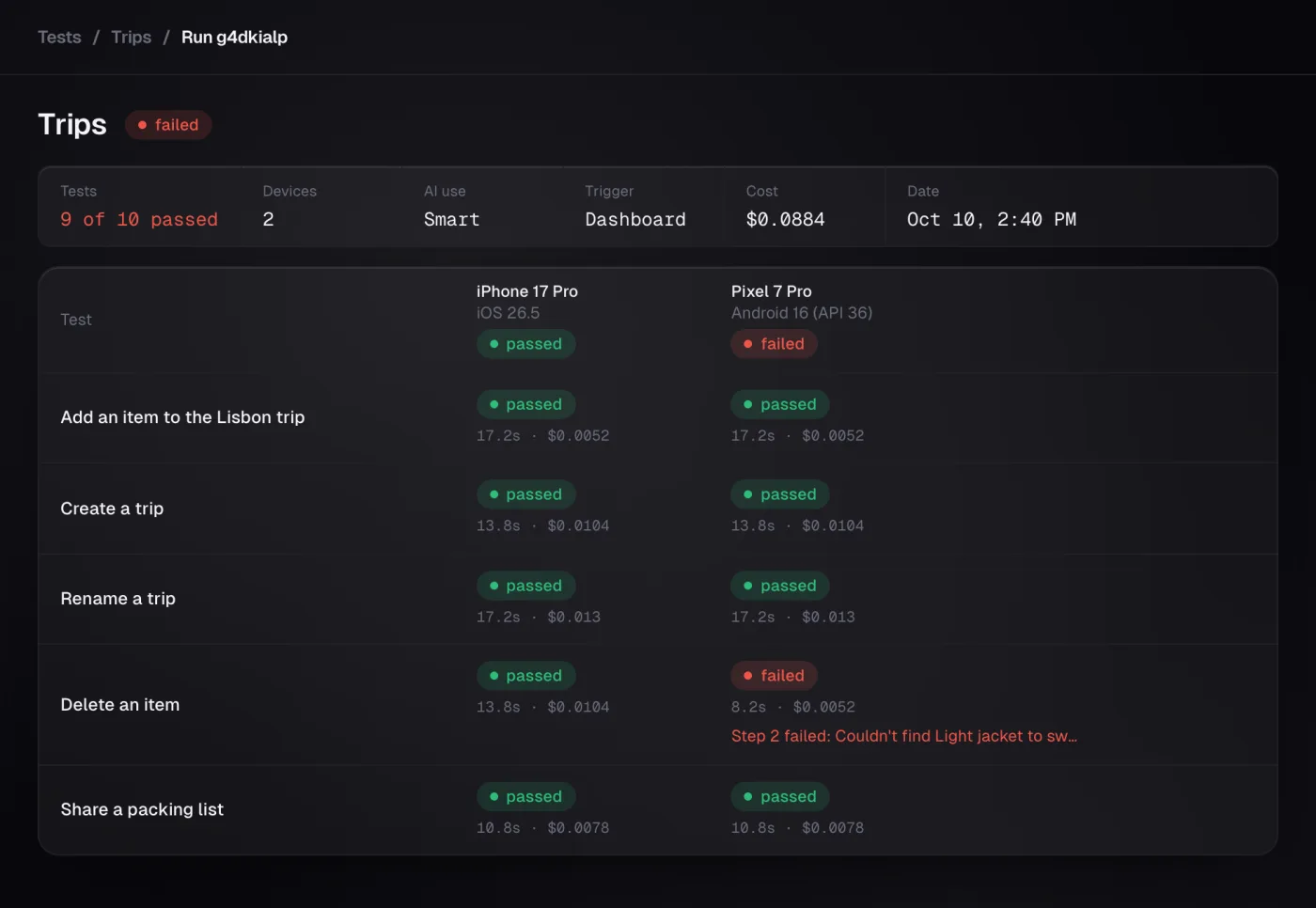
A run on several devices gets its own page: a row for each test and a column for each device, with each cell linking to that test’s run. A failure that only happens on one platform stands out right away.
One row per test and one column per device. This is example data from a sample app; each cell links to that test's own run.
In the Runs list on the Tests page, the whole run is one row, marked “2 devices” or however many you picked. Cancel run stops all of them at once.
Run it every night, or on every build
Under When in the Run dialog, pick Every night or On every new build instead of Now (on paid plans). A nightly run starts the same devices at the time you choose. On a new build, only that build’s platform runs: upload a new iOS build and the iPhone runs it; upload a new Android build and the Pixel does.
Sessions and minutes
Each device uses one of your plan’s concurrent sessions and counts toward your streaming minutes, like any session. If you pick more devices than you have free sessions, the extra ones wait in a queue and start as soon as a session frees up, and the dialog tells you how many will wait. Each plan’s limits are on the pricing page.
From CI
In CI, each vibeview command runs on one platform, so run your group once per platform:
Phone tests stay on phones and tablets, TV tests on TVs. A phone test is never offered a TV, and the other way round.
Upload a release build. A debug build that needs a Metro dev server shows an error screen in a test run, because a run has no dev server.
Frequently asked questions
Does a test recorded on iOS run on Android?
Yes, when the two apps share a bundle id or package name or are linked as one product. Steps
replay when the elements have the same id or text, and a Smart run hands the rest to the AI
(beta).
Can one run include Roku and Apple TV?
Yes, when the apps are linked as one product. Both are TVs, and each installs its own platform’s
app.
Do the devices run one after another?
No. They run at the same time when sessions are free, and the rest queue. On each device, the
tests run one after another in group order.