Bring your Maestro flows to VibeView
Rokas Kašinskas — Co-founder, VibeViewPublished 2026-10-11Updated 2026-10-13
Moving test tools usually means rewriting your tests, so most teams don’t. A Maestro import keeps the work you’ve already done: your flows become VibeView tests in one upload, and your YAML files stay exactly as they are.
What you get is a test you can read. tapOn: { id: login_button } becomes the step Tap the element with id “login_button”, so anyone on the team can see what a test does and change it without learning YAML.
Nothing is saved until you’ve seen what the import will create.
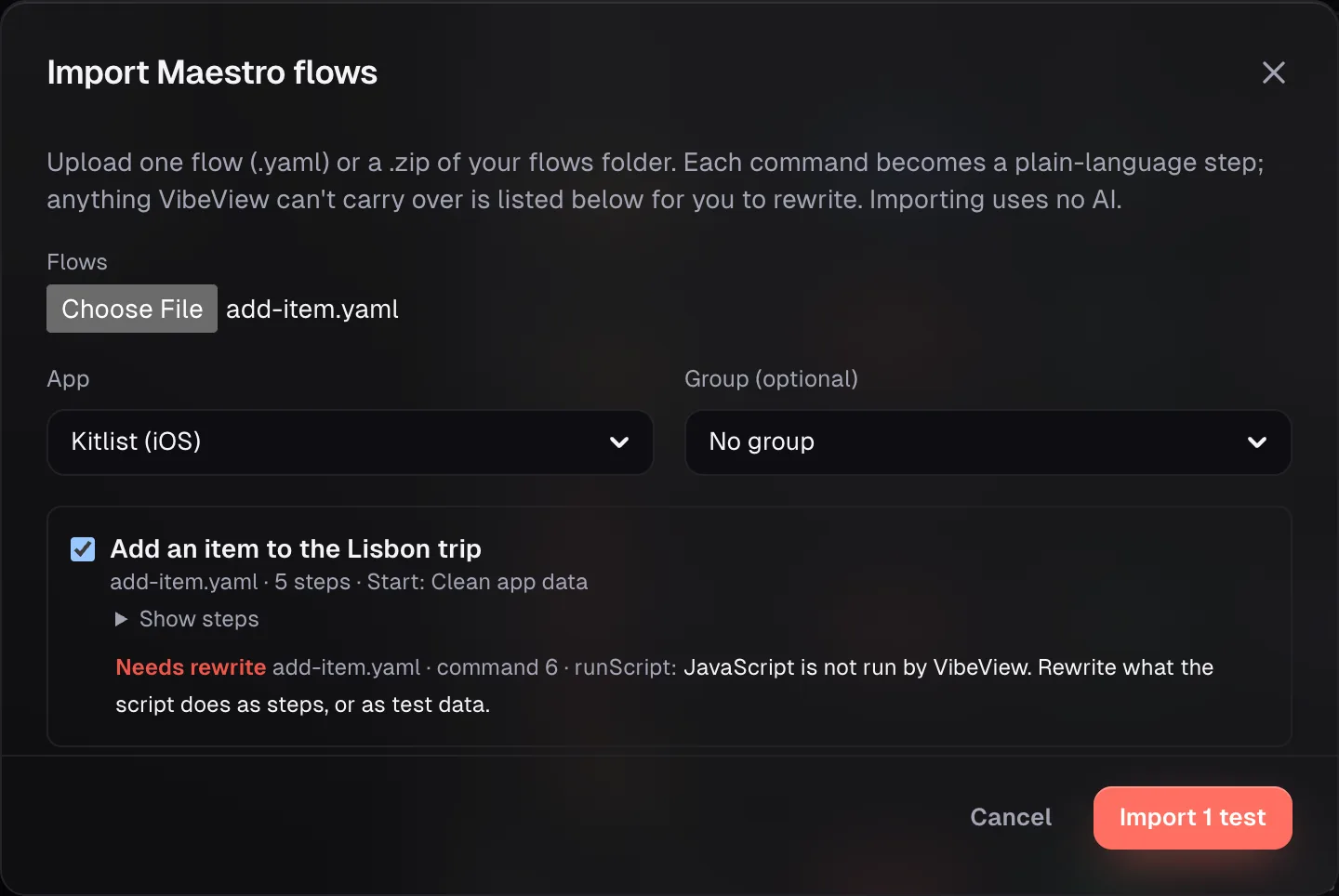
If a test with the same name already exists, the new one is imported as “Name (imported)”, so nothing is overwritten.
Prefer the terminal? The CLI does the same, with --dry-run for the preview:
vibeview import-maestro .maestro --app <app-id> --dry-run
vibeview import-maestro .maestro --app <app-id> --group "Smoke"Each command becomes a step that reads the way you would explain it to a tester. Some of the most common:
| Maestro | In VibeView |
|---|---|
tapOn: "Sign in" | Tap “Sign in” |
tapOn: { id: login_button } | Tap the element with id “login_button” |
inputText: "Lisbon" | Type “Lisbon” |
assertVisible: "Welcome" | Verify “Welcome” is visible |
assertWithAI: { assertion: "The cart is empty" } | Verify the cart is empty |
scrollUntilVisible: { element: "Save" } | Scroll down until “Save” is visible |
extendedWaitUntil: { visible: "Synced", timeout: 15000 } | Wait until “Synced” is visible (up to 15 s) |
pressKey: Enter | Press Enter |
An element’s id stays in the step, so the step still points at exactly the same element. The full table covers taps by position, swipes, random input, links, orientation and more.
launchApp and clearState at the start of a flow don’t become steps. They set how the test starts:
| At the start of the flow | Start state |
|---|---|
launchApp | Restart the app |
launchApp with clearState: true, or clearState | Clean app data |
launchApp with stopApp: false | Where the last test stopped |
Later in a flow, launchApp becomes the step “Restart the app”.
Shared flows keep working the way you built them:
runFlow at the start of a flow becomes a setup that runs Before this test, such as a sign-in. A setup used by several flows is imported once and shared.runFlow later in the flow has its steps copied into the test, as does one that passes env values.${NAME} becomes test data. The step refers to {{NAME}}, and values from env: or a default such as ${NAME || "value"} become its starting value.PASSWORD, API_KEY or authToken are stored as secret test data, never shown again and never sent to the AI. Check anything with a less obvious name, such as SESSION_COOKIE, under App notes & data after the import and tick Secret.The preview lists every command that needs your attention, with where it sits in the flow:
runScript, evalScript, assertTrue; VibeView never runs JavaScript from an upload), conditional flows (when:), open-ended loops, clipboard commands and a runFlow file missing from the upload. A VibeView test runs the same steps every time, so write the condition into a step instead: If “Not now” is shown, tap it.takeScreenshot isn’t needed because every step of a run keeps a screenshot, and screen recording isn’t needed because every run has a video.TV flows import too. On Apple TV, Android TV and Roku the remote moves the focus, so a tap at a screen position or a swipe is flagged with a suggestion such as “Select …” or “Press Left on the remote”, and pressKey: Enter becomes “Press Select on the remote”.
An imported test has no recorded taps yet, so on its first run the AI agent (beta) carries out each step, billed like any other AI run. Once a run passes, VibeView saves the route, and later runs replay it without the AI (Tests that stop paying for AI). If you’d rather skip the AI entirely, open the test and record it once.
.zip.& and *) are refused. Expand them and upload again.config.yaml is skipped. Tags and execution order don’t apply in VibeView.No. The import reads the files, and runs happen on VibeView’s live devices.
No, never. Scripts are flagged Needs rewrite, and VibeView never runs scripts from an upload.
Yes. The import copies what it reads; your files are unchanged.
Open a live iOS simulator, Android emulator, Apple TV, Android TV or Roku in your browser.
Start free