TV app testing · Fire TV
Test a Fire TV app without a Fire TV: emulator options
Rokas Kašinskas — Co-founder, VibeViewPublished 2026-10-30Updated 2026-10-30
TV app testing · Fire TV
There is no single Fire TV emulator, because Fire TV now runs two operating systems. A Fire OS app is an Android TV app with Amazon extras, so Android tools mostly work. A Vega OS app needs Amazon’s tools. This guide covers the options for each, then runs a public Android TV sample app on VibeView with the remote.
Every Amazon claim below links to Amazon’s own documentation.
Fire OS is Android underneath. Amazon’s Fire OS overview calls it “a fork of Android”, and says an app that runs on Android “will most likely run” on Fire devices too. Amazon lists Fire OS 16 as based on Android 15 and Android 16 (API levels 35 and 36). Where an Android app uses Google services, a Fire OS app may use Amazon’s instead: Amazon Device Messaging for push, Amazon In-App Purchasing for billing, and Login with Amazon for sign-in.
Vega OS is Amazon’s newer system, and it is not Android. Amazon’s Vega OS announcement (September 30, 2025) says Vega uses “Linux components as our foundation”. The Fire TV Stick 4K Select was the first device to run it. Amazon’s Vega run guide names the Fire TV Stick HD, Fire TV Stick 4K Select and Fire TV Streaming Media Player as Vega OS devices. Amazon’s guide to building for Fire TV on Vega OS says Vega “uses React Native under the hood”, and the guide’s sample app is packaged as a .vpkg file.
The Vega announcement also says Amazon continues “to launch new features and devices on Fire OS.” For a Fire OS app already in the Appstore, Amazon’s Cloud App Program can reach Vega devices without a rewrite. If Amazon accepts the app, it runs “in a dedicated AWS cloud container” and streams to the Vega device. To make a Vega app from a Fire OS one, Amazon offers App Porting, an AI-assisted conversion in beta.
So: if you build an .apk, you have a Fire OS app, and everything below applies. If you build a .vpkg, use Amazon’s Vega tools; VibeView doesn’t run Vega OS apps.
| Option | Runs | Good for | Not a substitute for |
|---|---|---|---|
| Amazon’s virtual Fire TV devices | Fire OS apps, in Amazon’s cloud | Testing with Amazon’s services | A physical device check before release |
| Amazon’s Vega Virtual Device | Vega OS apps, on your computer | Early Vega development | Login with Amazon, the launcher, performance |
| Android TV emulator in Android Studio | Fire OS apps, as Android TV apps, on your computer | Layout, focus and Back while you code | Anything Amazon-specific |
| VibeView in a browser | Fire OS apps, as Android TV apps, in VibeView’s cloud | Remote navigation, shared sessions, repeatable tests | Anything Amazon-specific |
Amazon’s Live Device Interaction for virtual devices gives you “cloud-hosted Fire TV devices”. You open them from Appstore Quality Central in the Amazon Developer Console. You can sideload an .apk, browse the Appstore, make in-app purchases in apps that are live, and use a virtual remote. Amazon asks for a connection faster than 100 Mbps, and a device left idle for more than 15 minutes can disconnect.
These are the closest thing to a Fire TV without one, because they run Fire OS with Amazon’s services. Appstore Quality Central also has a physical device farm, but Amazon’s overview says it “is available to select partners only”.
For Vega OS apps, the Vega Developer Tools include a Vega Virtual Device that runs Vega apps without a physical device. Amazon’s comparison says “Login with Amazon (LWA), Launcher, and other Fire TV middleware are NOT supported” there. It also says the virtual device is “Not supported for performance testing”. Amazon’s advice is to “Perform integration and production testing using Fire TV device.”
Android Studio has no Fire TV emulator to pick. Amazon’s Android Studio instructions cover Fire tablets and phones. They say “The steps described here cannot be used to simulate the Fire TV.” Google’s TV guide shows how to create an Android TV virtual device and run your app on it.
That works for a Fire OS app, with two gaps. The emulator has none of Amazon’s services. And it reports itself as Android TV, not Fire TV. Amazon’s detection guide checks for the amazon.hardware.fire_tv system feature, so code behind that check never runs.
VibeView runs your Fire OS .apk on Android TV emulators in its cloud, streamed to a browser tab. You don’t install Android Studio. You can invite a teammate into a session with collaboration, and your coding agent can drive it. The gaps are the same as in Android Studio: the device is an Android TV, without Amazon’s services. The same account also runs iOS and Android phones, Apple TV and Roku.
These two run on Fire devices: your testers’ own, or one connected to your computer. Live App Testing sends a version of your app to invited testers before it goes live, and they use Amazon’s production services. You can run up to five tests of an app at once. Amazon’s App Tester simulates the Appstore for in-app purchase testing; its setup connects to a Fire TV or Fire tablet over ADB.
We tested this with Google’s open-source Leanback sample (Apache 2.0). It is a classic Android TV catalog app built with Google’s Leanback library. We built it in VibeView’s cloud and drove it from the command line. The dashboard does the same steps with buttons.
Get an .apk. Upload one you already have with npx vibeview upload-app app-debug.apk, or Upload app on the Apps page. We had only source, so we added a build profile to vibeview.json that runs ./gradlew assembleDebug, then ran npx vibeview build --cloud --platform androidtv. The build took about a minute and uploaded the result.
Check that it’s a TV app. VibeView reads the manifest. An app that requires Amazon’s amazon.hardware.fire_tv feature counts as a TV app even without Android TV’s Leanback feature. Your Apps list shows it as Android TV. If the app has native code, include both x86 and x86_64. A build with only ARM code runs on fewer VibeView devices, or is refused if none can run it. Preparing your build has the details.
Start an Android TV session. In the dashboard, hover the app’s row, click Play, pick a device under Android TV, then Start session. From the CLI, npx vibeview dev --detach --json --platform androidtv --app <app-id> --standalone starts one and prints its session ID.
Drive it with the remote. Use the arrow keys to move focus, Enter to select and Escape for Back. The on-screen remote on the Devices page adds Home and Menu. From the CLI, vibeview press dpad_down (or dpad_right, dpad_center, back) presses a button and prints the element that has focus after it.
Capture what you see. vibeview screenshot saves the screen, and vibeview ui-tree lists the elements, with the focused one marked. On the dashboard, click Screenshot.
End the session with vibeview dev-stop, or End session on the Devices page, so it stops counting toward your streaming minutes.
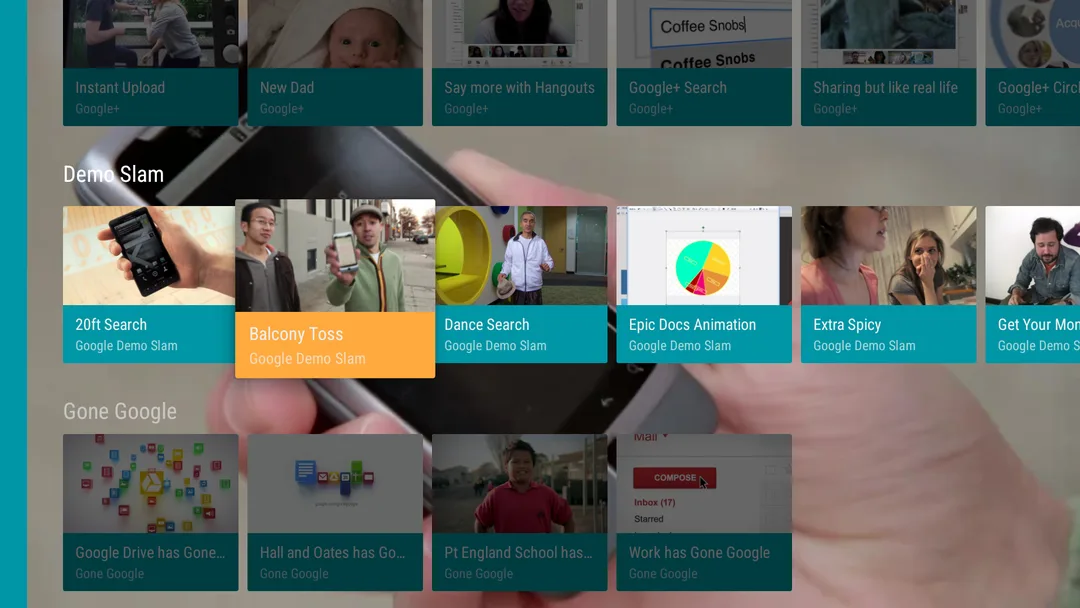
The sample opened on a three-page welcome screen, and Select stepped through it. On the catalog, focus started in the side menu. Down, then Right twice, moved it to the second tile of the second row, as the screenshot shows. Select opened the title’s details page, with focus on its first button.
Back returned to the catalog. Check where focus lands after Back: a viewer who opens a title and comes back expects to land on that title, not at the start of the catalog. Repeat it on a Fire TV before you call it a bug, because how the device delivers Back can affect it. The D-pad navigation guide has a full checklist for focus, selection and Back.
To repeat a flow like this on every build, record it once as a test from Create test. Recorded remote presses remember the element that had focus, and replay checks that focus landed there again. You can also run AI tests (beta) on the same device. See Apple TV, Android TV & Roku Testing.
VibeView’s devices are Android TV emulators, and some Fire TV behavior can’t be seen there:
amazon.hardware.fire_tv takes its Android TV path.Amazon’s Android Studio page states that “the Amazon Appstore requires that you test on a physical device before you submit your app.” Use an Android TV emulator for everyday work, then check these on a Fire TV, or on Amazon’s virtual Fire TV devices where they apply:
The smart TV app testing checklist lists the checks that apply to every TV platform.
When the build is ready, submit your Fire TV app to the Amazon Appstore from the command line. That guide covers the API key, the signed .apk Amazon needs, and what stays in the Amazon Developer Console.
Not from Amazon. Its Android Studio instructions cover Fire tablets and phones, and say they can’t simulate a Fire TV. Developers use an Android TV virtual device instead. For a Fire OS app that covers layout and navigation, but not Amazon’s services.
Yes, for a Fire OS app. It installs like any Android TV app. On VibeView, an app that requires the Fire TV hardware feature is still recognized as a TV app. The device reports itself as Android TV, so Fire TV checks in your code return false.
No. Vega OS apps are not Android apps. For Fire TV, VibeView runs Fire OS apps only, on its Android TV devices. Use Amazon’s Vega Virtual Device and a Vega OS Fire TV for those.
Not on an Android TV emulator, including VibeView’s. Amazon’s App Tester simulates the Appstore on a Fire device for a build that isn’t live yet, and Live App Testing lets invited testers use Amazon’s production services. Amazon’s virtual Fire TV devices support purchases in live apps.
Yes, on VibeView. Turn on collaboration and send the link to invite a teammate into your live session. A coding agent can drive the device through the CLI or the MCP server, read which element has focus and press remote buttons.
The Free plan includes streaming minutes each month, with no card. See pricing for the current limits.
Amazon’s and Google’s pages quoted here were checked on October 30, 2026.
Open a live iOS simulator, Android emulator, Apple TV, Android TV or Roku in your browser.
Start free