TV app testing
How to test Android TV D-pad navigation
Rokas Kašinskas — Co-founder, VibeViewPublished 2026-10-11Updated 2026-10-11
TV app testing
A TV screen can look correct while its controls are unreachable from a remote. Google recommends checking D-pad reachability, scrolling lists, and predictable movement in its TV navigation guide. The test needs to follow the remote’s path through the app.
The JetStream sample provides a TV interface to try before uploading your own build. If it is present in your organization’s Apps list, click Play on its row. On the Devices page, choose an available Android TV device, then click Start session.
For your own app, use Upload app to upload its APK first. VibeView detects TV apps from their Android manifest. If your app contains native code, include both x86 and x86_64 to cover the available Android TV architectures. See Preparing Your App Build for details.
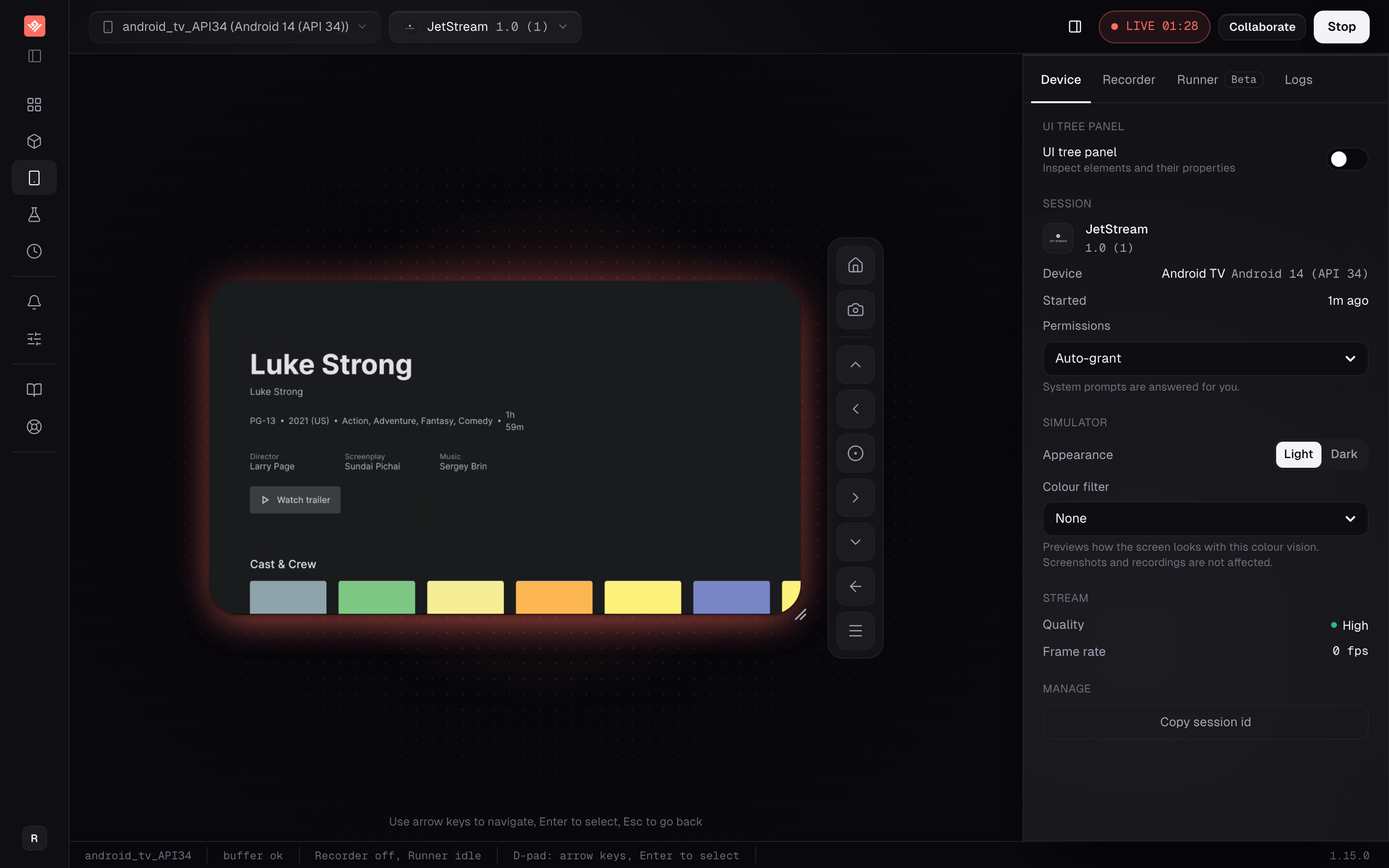
Wait until the app is installed and visible. An Android phone session is not interchangeable with Android TV: choose the TV device group for this walkthrough.
| Keyboard input | TV action |
|---|---|
| Arrow keys | Move in the corresponding direction. |
| Enter | Select the focused control. |
| Escape | Send Back. |
The on-screen remote provides directional and selection controls too. Clicking a tile in the video is not TV touch input. If arrow keys do nothing, check that the session is active and keyboard focus is not inside a text field or select control on the page.
Before testing, identify the app’s focus indicator. It might be a border, a change in size, or a highlighted surface. Focus and selection are different states: a highlighted tile is not necessarily open or selected. Google’s focus-system guidance explains the visual distinction.
Use this as a test plan for your app. JetStream is a convenient place to try the same kind of catalog-to-details flow; choose the titles present in the build you are reviewing rather than relying on a particular catalog entry.
| Check | What to observe |
|---|---|
| First focus | A usable control has visible focus when the screen opens. |
| Horizontal movement | Left and Right move between adjacent items in a predictable order. |
| Moving between rows | Up and Down reach the intended row without skipping an essential control. |
| Selection | Enter activates the item that visibly holds focus. |
| Back from details | Escape returns to the expected screen with useful focus. |
| List boundaries | Repeated input at an edge does not leave focus invisible or trapped. |
| Overlays and dialogs | Focus stays usable while the overlay is open and returns sensibly after closing it. |
For your first pass, move slowly enough to see each focus transition. Then repeat using the faster input a person might use on a remote. A problem report should identify both the control that had focus and the control that received it unexpectedly.
Record the app build, Android TV model, OS version, starting screen, and directional sequence. Describe the expected focus target and what happened instead. Capture a screenshot when the visual highlight is unclear.
For example, a useful report would be: “From the first tile in the second row, Up moves focus to the navigation rail; expected the tile above.” This is a sample report format, not a claim about JetStream.
If the app exposes focus through Android’s accessibility tree, VibeView can use that information during recording and replay. Apps that implement focus entirely in JavaScript without exposing it to the platform may not provide enough information for verified focus navigation.
Follow Getting Started to open Create test against the TV app and choose Record. Wait for the app to appear on the Devices page and perform the short directional flow you want to repeat. Review the generated steps before saving.
AI testing is in beta. Recorded TV steps can include the focused element so replay can check its target. If that target cannot be reached or observed, a replay may fall back to the recorded key and mark the step unverified. Inspect that result rather than treating it as confirmation that focus landed correctly. The TV testing documentation describes this behavior.
Use the emulator for navigation and app-state regressions. Check your release on physical hardware for remote feel, video playback performance, DRM-dependent behavior, and device-specific differences. A successful catalog-navigation flow does not verify the media playback pipeline.
The same review method is useful for tvOS. VibeView’s TV Catalog sample runs on an Apple TV simulator, with its own native focus behavior; test that build separately. See Apple TV support and Android TV support for the platform-specific capabilities.
Can I test Android TV navigation without a TV or a Shield? Yes. The Android TV emulator honours the same D-pad key events a remote sends, so focus order, selection and Back behaviour can all be checked from a browser. What it cannot tell you is how the remote feels in hand or how video playback performs on real hardware.
Which keys act as the remote? Arrow keys move focus, Enter selects, and Escape sends Back. The on-screen remote offers the same controls for anyone without a keyboard handy.
Does this work for React Native TV apps? For navigation checks, yes. For recorded and replayed steps, only partly: an app that keeps focus entirely in JavaScript, without exposing it through Android’s accessibility tree, gives replay nothing to verify against, so those steps replay the recorded key and are marked unverified.
Can I share a TV session with a reviewer? Yes. Create a link from the app’s Share tab like any other app; the recipient gets the same on-screen remote and keyboard mapping in their browser.
Does my TV APK need special preparation?
It needs to be an Android TV app in its manifest, which is how it is detected, and if it contains native code it should include both x86 and x86_64 libraries. See Preparing Your App Build.
The free tier takes no card: two concurrent sessions and 30 streaming minutes a month, in sessions of up to five minutes. Run the checklist above against JetStream first, then against your own TV APK, before anyone plugs in a television.
Open a live iOS simulator, Android emulator, Apple TV, Android TV or Roku in your browser.
Start free