TV app testing
How to test focus navigation in a tvOS app
Rokas Kašinskas — Co-founder, VibeViewPublished 2026-10-11Updated 2026-10-11
TV app testing
A tvOS screen is only usable if the remote can reach every control on it. Apple’s Human Interface Guidelines for tvOS put focus and navigation at the centre of the platform: a viewer’s attention follows the focus effect, and an unreachable button might as well not exist. The test has to follow the remote’s path, not a mouse.
The TV Catalog sample is a tvOS app that ships in your Apps list so you can try the remote before preparing a build. If it is there with a Sample badge, click Play on its row, pick an available Apple TV on the Devices page, and click Start session.
For your own app, you need a tvOS simulator build: the same .app bundle Xcode produces for the Apple TV simulator, compressed into a .zip or .tar.gz. A signed device build will not install. Build it locally with the appletvsimulator SDK as shown in Preparing Your App Build, or, for a React Native project, let a cloud build compile it from Windows or Linux with vibeview build --cloud --platform tvos. Then upload it with Upload app and click Play.
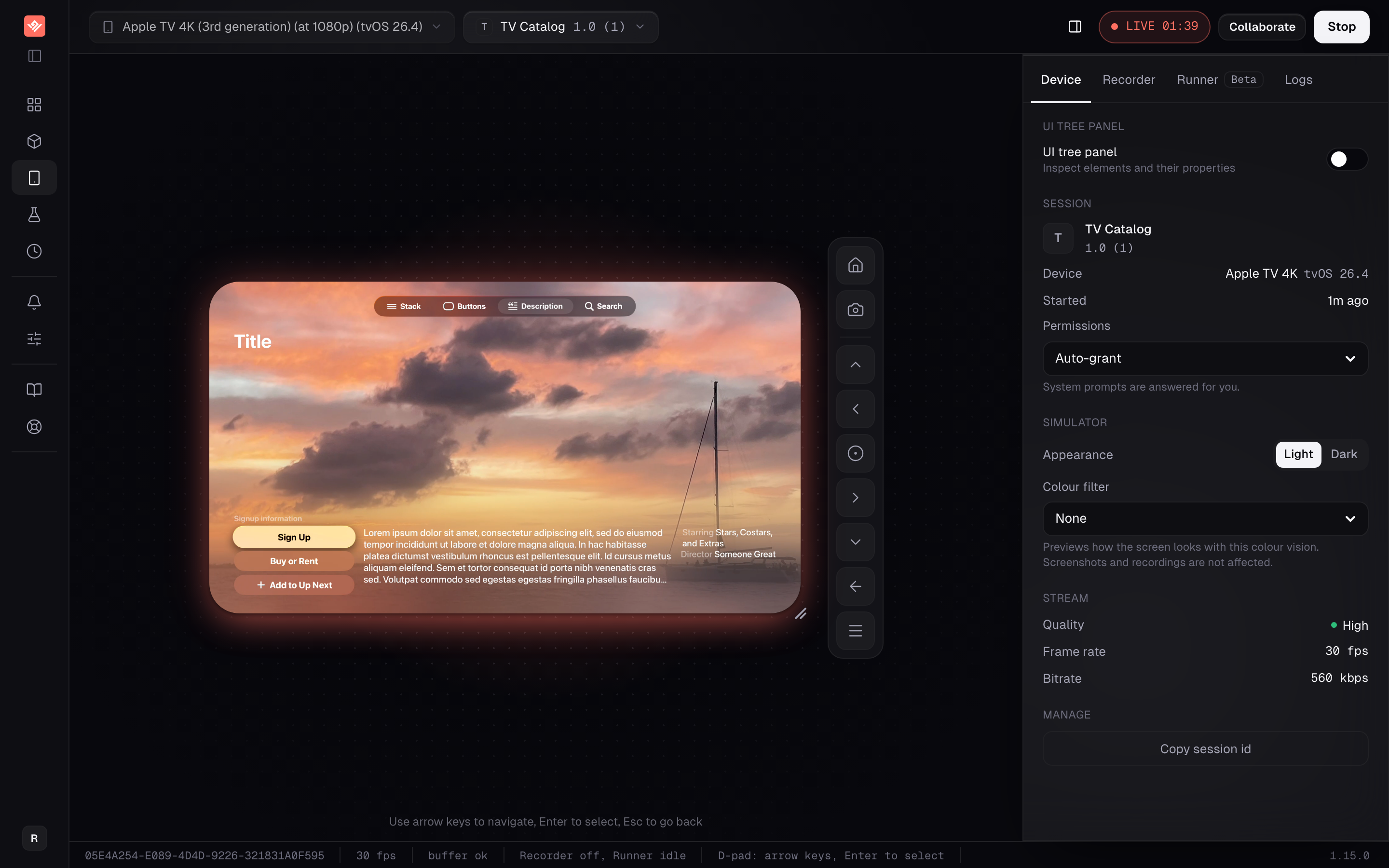
A fresh Apple TV simulator contains Settings and nothing else: Apple’s tvOS simulator has no App Store, browser or TV app. Starting the session from an app is the whole workflow.
| Keyboard input | Remote action |
|---|---|
| Arrow keys | Move focus in that direction |
| Enter | Select the focused element |
| Escape | Back |
The on-screen remote next to the stream offers the same controls, plus Menu and Home. Clicking on the video does nothing on a TV session; there is no touch. If the arrow keys seem dead, check that the session is live and that keyboard focus is not inside a text field or dropdown on the page itself.
The model is discrete presses. Swipes and scrubbing on the physical Siri Remote’s touch surface are not simulated, which matters for a scrubber or a carousel that only responds to swipes. Check those on hardware.
Use this as the test plan for your app. TV Catalog is a convenient place to try the same catalog-to-details flow first.
| Check | What to observe |
|---|---|
| First focus | The first useful control has the focus effect when a screen opens, not something off-screen |
| Row movement | Left and Right walk a shelf in order, and the shelf scrolls to keep the focused item visible |
| Between rows | Up and Down land on the nearest sensible item in the next row, not the first item every time |
| Selection | Enter opens the item that visibly holds focus |
| Back from details | Escape returns to the previous screen with focus on the item you came from |
| Top of screen | Up from the first row reaches the tab bar or header, and Down returns to the same row |
| Edges | Repeated presses at the end of a row do not lose focus or jump to another section |
| Overlays | Focus moves into a modal or alert when it opens and returns to the trigger when it closes |
Do the first pass slowly enough to watch each focus transition, then repeat at the speed a viewer clicks. A useful bug report names the control that had focus, the press, and the control that received it unexpectedly.
On Apple TV, the UI tree VibeView shows comes from the native automation layer, which exposes the full element tree and which element currently holds focus. Open the UI tree on the Device tab to confirm that the element you believe is focused actually is; a custom focus effect drawn in the wrong place is a classic tvOS bug that looks correct to the eye.
That same focus information is what makes recordings on Apple TV replayable. Each directional press you record is stored with the element that held focus at the time, so a replay can navigate to that element and verify focus landed there rather than blindly replaying key codes.
Follow Getting Started to open Create test against the TV app, choose Record, wait for the app to appear on the Devices page, and perform the short directional flow you want to keep. Review the generated steps before saving.
AI testing is in beta. On replay, a step whose recorded focus target cannot be reached, because a shelf was reordered or the element is gone, falls back to the recorded key and is marked unverified with the reason. Read that result rather than treating it as a pass. The TV testing documentation describes the focus model, the AI tools available on TV sessions, and how to run TV tests from the CLI.
If you also ship an Android TV build, a test recorded on Apple TV can replay on Android TV and vice versa: both are the TV form factor. Apps built with react-native-tvos that set a testID get it mapped to the identifiers on both platforms, which is what turns a cross-platform replay from unverified into focus-verified.
Keep the simulator for navigation, layout and app-state regressions. Check the release on hardware for Siri Remote touch-surface gestures, video playback and HDR output, Top Shelf and Siri integration, and real-device performance. A catalog flow that passes on the simulator says nothing about the playback pipeline.
Can I test a tvOS app without an Apple TV or a Mac? Yes. The Apple TV simulator runs on a Mac VibeView operates and streams to your browser, and a cloud build can compile your tvOS app from Windows or Linux. What it cannot do is stand in for hardware-dependent behaviour such as remote gestures or playback.
Which keys act as the Siri Remote? Arrow keys move focus, Enter selects, and Escape sends Back. The on-screen remote adds Menu and Home. Touch-surface swipes are not simulated.
Does this work for React Native TV apps?
Yes for navigation checks. For recorded replay, set a testID on focusable components: react-native-tvos maps it to the native identifier, which is what lets a replay verify focus on Apple TV and reuse the same recording on Android TV.
Can I share an Apple TV session with a reviewer? Yes. Create a link from the app’s Share tab; the recipient gets the same on-screen remote and keyboard mapping in their browser, with no account required unless you turn that on.
Does my tvOS build need special preparation?
It must be a simulator build produced with the appletvsimulator SDK, compressed to .zip or .tar.gz. A device .ipa is rejected on upload. See Preparing Your App Build.
The free tier takes no card: two concurrent sessions, 30 streaming minutes a month in sessions of up to five minutes, and a monthly allowance of cloud build minutes. Run the checklist above against TV Catalog first, then against your own tvOS build, before anyone borrows the office Apple TV.
Open a live iOS simulator, Android emulator, Apple TV, Android TV or Roku in your browser.
Start free