Google AI Studio · Kotlin
Google AI Studio Android app: test it live and ship it
Rokas Kašinskas — Co-founder, VibeViewPublished 2026-10-31Updated 2026-10-31
Google AI Studio · Kotlin
AI Studio already shows your app in its own cloud emulator and can send it to Google Play’s internal testing track. This guide covers what comes after that: your own build, a link anyone can open, and a path to Play production and the Amazon Appstore.
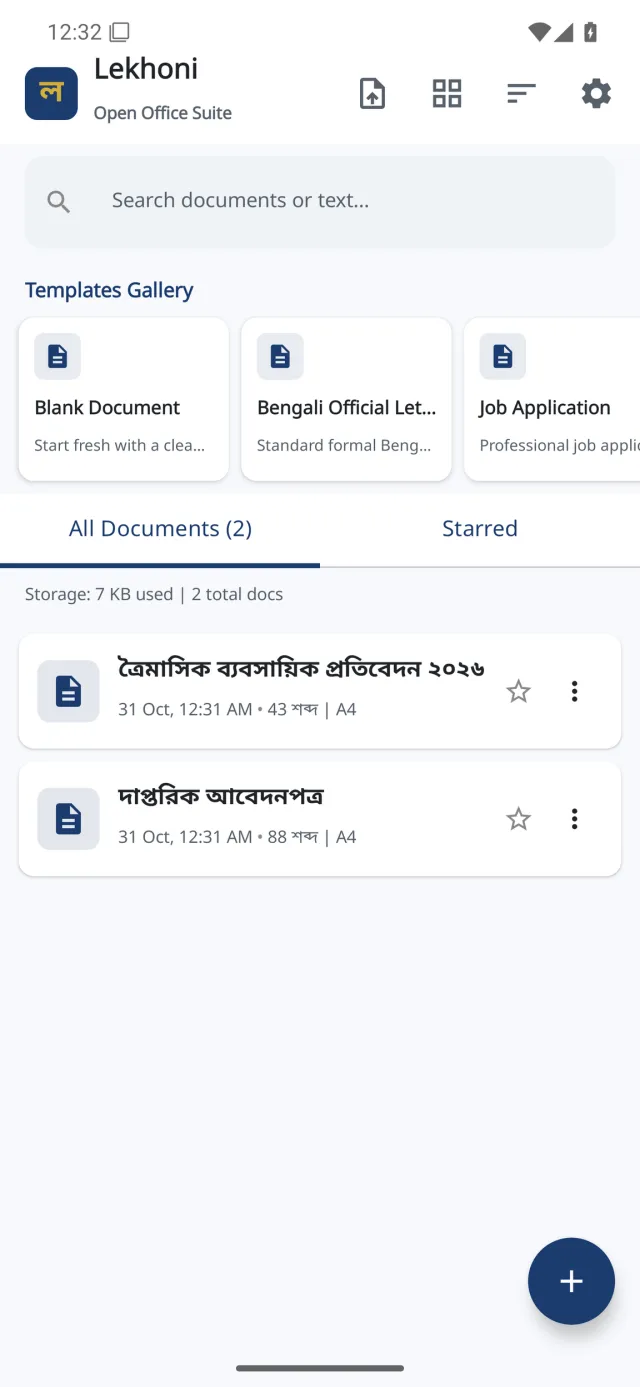
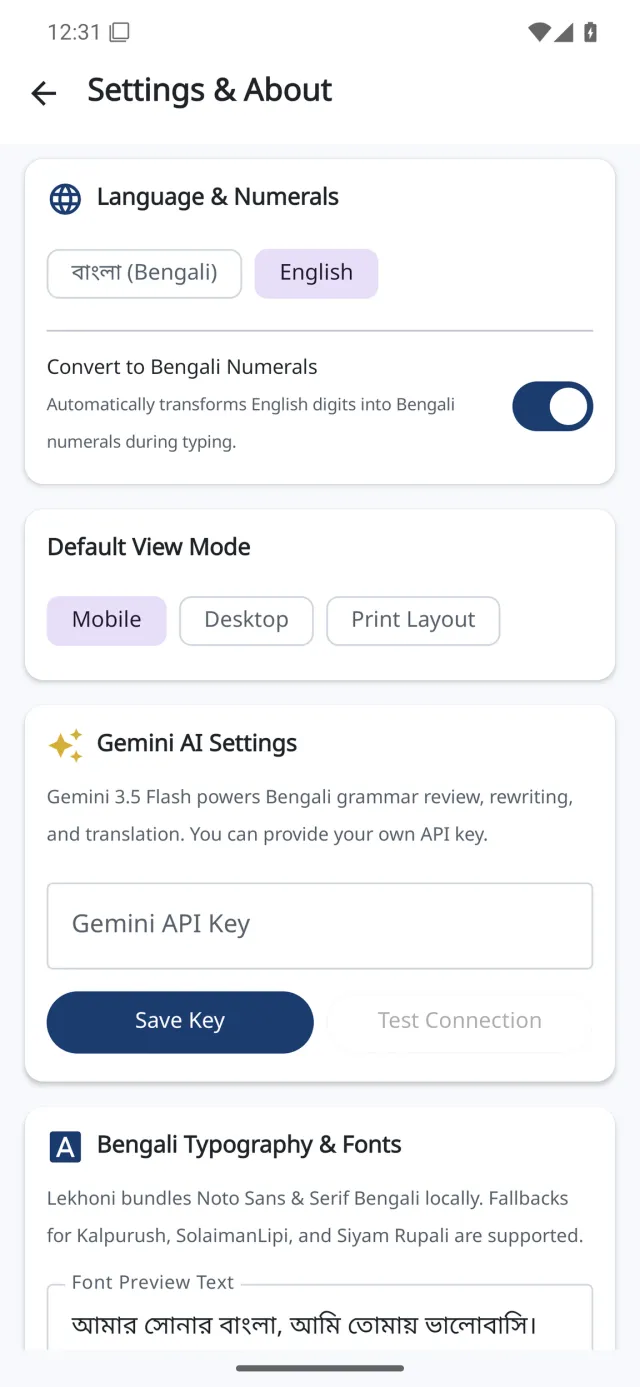
We followed it on October 31, 2026 with Lekhoni, a Bengali document editor made in AI Studio, starting from its public GitHub copy (MIT license) rather than an AI Studio download. It built in the cloud with no change to its code and opened on a cloud Android phone. Lekhoni stores its documents on the phone and has no server, so the app sent no data anywhere while we tested it.
Google says AI Studio builds “native Android apps with Kotlin and Jetpack Compose” (Build mode, checked October 31, 2026). The rest of this section comes from Build Android apps (checked October 31, 2026):
| What you want | In AI Studio | With VibeView |
|---|---|---|
| Try the app | Its cloud emulator, or a USB phone | Your build, live in a browser tab |
| Show it to someone | Internal testing, up to 100 people | A link that opens your build in any browser |
| Release to everyone on Play | Done by hand in Play Console | A signed build uploaded to any Play track |
| Fire tablets (Amazon Appstore) | Not covered | A signed .apk sent to Amazon for review |
VibeView also runs iPhone, iPad, Apple TV, Android TV and Roku apps. An AI Studio Android app targets phones and tablets only, so this guide sticks to those.
No. Google’s Firebase docs say “Creating iOS apps isn’t supported in Google AI Studio” (Add Firebase to your Google AI Studio app, checked October 31, 2026). The project is an Android-only Jetpack Compose app, so it won’t build for iPhone as it is. An iPhone version means a separate app, or porting this one to Kotlin Multiplatform, which is real development work.
AI Studio’s other option is a web app, which phones open in their browser. To put a web app in the App Store, you wrap it in a native shell with a tool such as Capacitor. Lovable mobile app shows that route for another builder’s web app. We haven’t tried it with an AI Studio web app.
npm command. To check yours, run node --version in a terminal.You don’t need Android Studio, Java or Gradle on your computer.
Two things a build needs are usually missing from an AI Studio project:
gradlew script. Gradle, the tool that builds Android apps, normally starts through this small script. The project names the Gradle version it wants, but most AI Studio projects people have put on GitHub have no script, Lekhoni included.debug.keystore file. Its .gitignore, the list of files Git skips, excludes that file, so a cloud build never receives it, even if your download has it.The vibeview.json file in step 3 covers both. On every build, it downloads the Gradle version your project asks for and makes a fresh test key, both on the cloud machine. Your app’s code doesn’t change.
Download and unzip your project. In AI Studio, download your app as a ZIP file, then unzip it into a folder of its own. The folder should hold settings.gradle.kts, build.gradle.kts and an app folder. If they sit one folder further down, use that inner folder.
Open a terminal in that folder and turn it into a Git repository. Use Terminal on a Mac, or PowerShell on Windows, and go to the folder with cd, for example cd Downloads/my-app. Then run:
git initThe build command uploads the files Git can see, and skips the ones the project’s .gitignore excludes, such as .env in Lekhoni’s. Without a repository it stops with “is not a git repository”. You don’t need to commit anything.
Create vibeview.json. In the same folder, make a file named vibeview.json in a text editor, paste this in and save it. Check that the name ends in .json, not .json.txt. In Windows Notepad, set Save as type to All files before saving:
{
  "defaultPlatform": "android",
  "platforms": {
    "android": {
      "build": {
        "profiles": {
          "preview": {
            "command": "curl -fsSLo /tmp/gradle.zip $(grep distributionUrl gradle/wrapper/gradle-wrapper.properties | cut -d= -f2 | tr -cd 'a-zA-Z0-9:/._-') && unzip -qo /tmp/gradle.zip -d /tmp/gradle && keytool -genkeypair -keystore debug.keystore -storepass android -keypass android -alias androiddebugkey -keyalg RSA -validity 10000 -dname 'CN=Android Debug,O=Android,C=US' && /tmp/gradle/gradle-*/bin/gradle :app:assembleDebug",
            "artifact": "app/build/outputs/apk/debug/*.apk"
          }
        }
      }
    }
  }
}
The command runs on the cloud machine, not on your computer. It reads the Gradle version from your project, downloads that version from Gradle’s own site, creates the test key the project expects, and builds a test version of the app. Keep the file. AI Studio’s downloads never include it, so you reuse it after each new download (see After you change the app in AI Studio).
Install the CLI and log in.
npm install -g vibeview
vibeview login
npm install -g vibeview installs the command, or brings it up to date. vibeview login opens your browser, where you approve the sign-in. On Windows, if PowerShell says running scripts is disabled, run Set-ExecutionPolicy -ExecutionPolicy RemoteSigned -Scope CurrentUser once, or use Command Prompt.
Build it.
vibeview build --cloud --platform android --profile previewIf your VibeView account already has Android apps, the CLI asks “Which app should these builds attach to?”. Choose Create a new app from this build, or your app if it’s already listed. If you’ve built this app before (same package name, the app’s ID on Android), the build goes under that app either way. Your terminal then shows the build’s progress. Ours took about two minutes. When it finishes, the CLI adds your app’s VibeView ID to vibeview.json.
The build appears under Builds in your VibeView dashboard, and your app under Apps, with its name and icon. If you don’t see it, When a build fails lists what we ran into.
In the dashboard, open Builds, click your newest build, then click Run this build. An Android phone opens in a browser tab; you tap with the mouse and type with your keyboard. Or run this in the project folder:
vibeview dev --standalone --platform androidIt prints a Watch and interact link to open in your browser. Ours was ready in about seven seconds. --standalone runs the build you made, without linking it to anything on your computer. Press Ctrl+C in the terminal to end the session. The session counts against your streaming minutes, and it closes itself after a while with no taps.
AI Studio’s Play publishing reaches up to 100 testers, and each needs an Android phone with Google Play. A VibeView share link needs only a browser. In the dashboard, open Sharing, click Share an app, pick your app, choose Send a link and click Continue. Whoever opens the link uses your build in their browser, with no install and no Google account. The time they spend counts against your streaming minutes. Sharing your app covers expiry and the other link settings.
Never put a Gemini API key in your build. Anyone can unpack an Android app, and Firebase’s docs warn that “Embedding a raw Gemini API key directly into an APK exposes the key to extraction and potential billing abuse” (Add Firebase to your Google AI Studio app, checked October 31, 2026). Google says AI Studio’s Android apps use Firebase “instead of a raw API key, so credentials are never embedded in your APK” (Build mode). Keep keys out of vibeview.json and out of VibeView’s build variables too.
Some AI Studio projects, Lekhoni among them, keep a GEMINI_API_KEY line in a .env file. That file stays out of a VibeView build as long as the project’s .gitignore lists it, as Lekhoni’s does. Check yours before your first build. We checked Lekhoni: we put a test value in .env, built, and the finished app held the placeholder from .env.example instead. That only protects VibeView builds. A build made on your own computer does read .env, so a key there would end up inside the app, where anyone who has the app can read it.
Two cases you may meet:
google-services.json file, and the app has Gemini features). AI Studio protects those calls with App Check, which checks that a request comes from your real app. AI Studio sets this up for its own emulator, USB installs and the testers it shares with. A build made elsewhere doesn’t get that setup, and Firebase says App Check-protected features “won’t run in an emulator” without a debug setup (App Check debug provider, checked October 31, 2026). We haven’t tested a Firebase app. Going by Firebase’s docs, its Gemini features may be refused on a cloud device. That page covers the debug setup, which needs a change to your app’s code.AI Studio and your folder don’t stay in sync by themselves. After each change, download a new ZIP and unzip it into a new folder. Copy vibeview.json into it, run git init there, and run the build command from step 5 again. A new folder matters: unzipping over the old one would keep files AI Studio has since deleted, and a leftover file can break the build.
AI Studio stops at Play’s internal testing track. VibeView can upload a signed build to any Play track, production included, and send an .apk to the Amazon Appstore, which reaches Fire tablets. Store Submission has the steps and the one-time setup in each store, and Submit a Fire TV app to the Amazon Appstore walks through an Amazon submission.
A store build is a different kind of build from the test build above, signed with your own key. It gets its own profile in vibeview.json. Copy the whole preview block, rename the copy production, and change two things: the end of its command from :app:assembleDebug to :app:bundleRelease, and its artifact to app/build/outputs/bundle/release/*.aab. For an Amazon .apk, use :app:assembleRelease and app/build/outputs/apk/release/*.apk instead. The profiles part of the file then looks like this, with each ... standing for the step 3 command:
"profiles": {
  "preview": {
    "command": "... :app:assembleDebug",
    "artifact": "app/build/outputs/apk/debug/*.apk"
  },
  "production": {
    "command": "... :app:bundleRelease",
    "artifact": "app/build/outputs/bundle/release/*.aab"
  }
}
You start it with vibeview build --cloud --production. To sign it, you edit app/build.gradle.kts and add a signing block that takes over from the release signing AI Studio wrote there. App Signing has the block for this file type. A fresh ZIP brings back AI Studio’s version of that file, so make the edit again after each download. We didn’t make a store build of Lekhoni, so these steps are untested for AI Studio projects.
Check three things before your first upload:
"autoIncrement": true to the production profile, and make versionCode in app/build.gradle.kts read the number VibeView passes in, as Automatic build numbers shows. Like the rest of this section, we haven’t tried it on an AI Studio project.vibeview.json, or you ran it from another folder. Run it in the folder with vibeview.json and settings.gradle.kts.Keystore file … debug.keystore' not found for signing config 'debugConfig'. The build command has no keytool part. Copy the whole command from step 3 again../gradlew or gradle fails at once. Your project has no gradlew, and the cloud machines don’t have Gradle installed. Use the command from step 3, which downloads Gradle first.is not a git repository. Run git init in the project folder.Yes, but AI Studio itself only publishes to the internal testing track. For production, release in Play Console yourself, or upload your own signed build to the production track with VibeView.
No. AI Studio makes web apps and Android apps, and its Android apps are Android-only Jetpack Compose projects. An iPhone version means a separate app or a port to Kotlin Multiplatform.
No. The build runs on a cloud machine with Java and the Android tools already there. The settings file in step 3 downloads the right Gradle version for your project.
Google says AI Studio Android apps target phones and tablets only, not Android TV. VibeView runs Android TV apps, but an AI Studio app would need TV-specific work first.
.apk you already have on a live device, no build neededOpen a live iOS simulator, Android emulator, Apple TV, Android TV or Roku in your browser.
Start free