iPhone Duo · Expo and React Native
How to support iPhone Duo in Expo and React Native
Rokas Kašinskas — Co-founder, VibeViewPublished 2026-10-29Updated 2026-10-29
iPhone Duo · Expo and React Native
The iPhone Duo is Apple’s first foldable: a small cover screen outside and a large inner screen that folds down the middle. Your app moves between them as the device opens, closes and rotates. A React Native app does not need native code to handle that well. It needs the right build settings and a layout sized from the window.
Apple’s Preparing your app for iPhone Duo starts from one idea: “Resizing is a key feature for your app on iPhone Duo.” Its checklist page turns that into rules that apply to JavaScript layouts as much as to UIKit:
The documentation page adds one more rule: keep content out of the fold. iOS reports the fold as a reserved region, and Apple asks you to look for controls “that appear in the fold, and are difficult to see or interact with.” It also notes that on the Duo, navigation bars, toolbars and tab bars can move into a vertical rail on the side of the display. System navigation handles that for you. Hand-drawn bars do not.
A scene is one window of your app. Under UIKit’s scene life cycle (UIScene), a scene delegate, not your app delegate, creates that window and hears when it comes to the foreground or goes to the background. iOS 27 requires the scene life cycle for apps built with the iOS 27 SDK, and an app without it fails at launch.
npx expo prebuild --clean. If you maintain ios/ by hand, apply the changes in Expo’s migration guide.ios.enableSceneSupport setting of expo-build-properties (expo@57.0.23 or newer; run npx expo install --fix first if you are on an older 57 patch). Add it to your app config, then run npx expo prebuild --clean. It works only with the standard AppDelegate template. Kitlist took this route for its Duo layout, with no native code.Native modules can break under scenes, because some app delegate callbacks stop firing. Check your native dependencies’ release notes for scene support. UIScene life cycle is required: fix it for Xcode 27 has the steps for each stack, including the Expo SDK 57 setting and the React Native 0.88 migration.
How the Duo shows your app on its inner screen depends on the iOS SDK the build used:
| Built with | On the inner screen |
|---|---|
| An SDK before iOS 27.0 (Xcode 26.x) | Compatibility mode: iPhone-sized in the middle, black on either side |
| The iOS 27.0 SDK | A wide window, so width-based layouts show up, but the app is not told where the fold is |
| The iOS 27.1 SDK (Xcode 27.1) | The whole inner screen, with the fold available to lay out around |
The cover screen looks the same in all three cases. Xcode 27.1 needs macOS 26.6 or later (Apple) on an Apple silicon Mac (MacRumors). The apps it builds must target iOS 15.0 or later. If your Mac can’t run it, a VibeView cloud build can. Set "xcode": "27.1" for iOS in vibeview.json, or add --xcode 27.1 to one vibeview build --cloud run. See Build for iPhone Duo with Xcode 27.1.
React Native’s useWindowDimensions() “automatically updates all of its values when screen size or font scale changes”. The 0.88 release notes add that under the scene life cycle the window can resize, and Dimensions.get() follows it too. In Kitlist, on Expo SDK 57 with scene support on, a component that reads the hook re-rendered on every fold, unfold and rotation.
Put the layout decision in one hook. It returns whether to show two panes and which way to arrange them:
import { useWindowDimensions } from 'react-native';

export function useLayout() {
  const { width, height } = useWindowDimensions();
  const shortSide = Math.min(width, height);
  const longSide = Math.max(width, height);
  const twoPanes = shortSide >= 600 && longSide >= 640;
  return { twoPanes, direction: width > height ? 'row' : 'column' } as const;
}
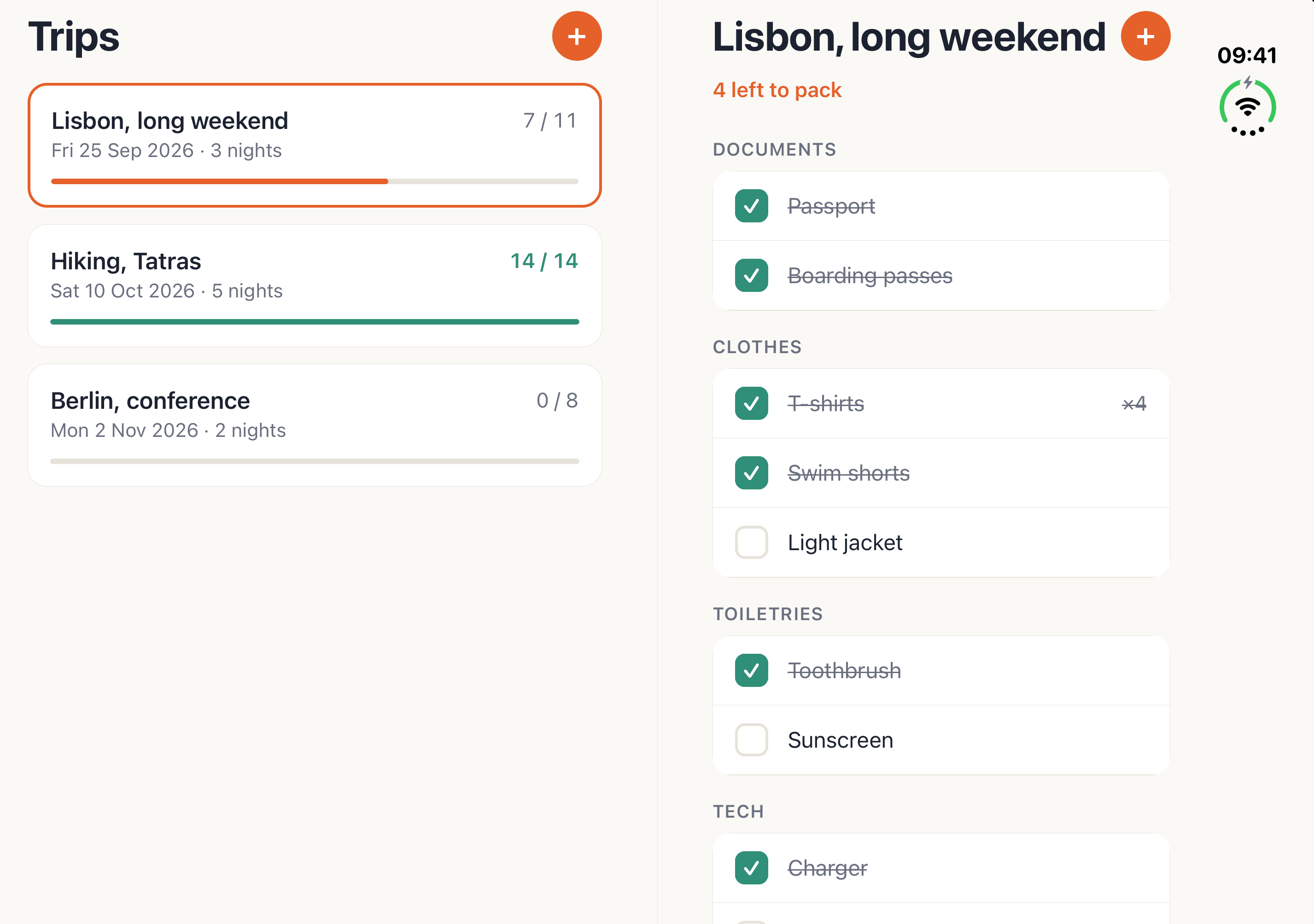
These are the thresholds Kitlist uses. At about 466×678 points, the cover screen is under 600 on its short side, so it shows one pane. The inner screen, about 951×669 points, passes both tests and shows two: side by side when open, stacked when rotated. The same rule gives an iPad two panes and keeps a landscape iPhone on one, because nothing in it names a device.
A few habits keep it working:
StyleSheet at import time.Platform.isPad, a list of known iPhone heights, or “landscape means tablet” all give wrong answers on the Duo.requireFullScreen, the app config key that used to opt an app out of resizing, no longer opts it out, and lockAsync “may have no effect”. Design for both shapes instead./trip/[id]. Then folding from two panes to one still shows it. Don’t remount the navigator when the layout switches, or you lose the tab, scroll position and form input.Safe areas matter more on the Duo. Expo’s SDK 58 notes warn that horizontal insets may mean adding <SafeAreaView> in more places, such as inside scroll views, and recommend updating react-native-safe-area-context with npx expo install react-native-safe-area-context.
The cover screen shows its status bar only at the top, but its safe area still reserves an 84-point strip down the whole right edge. Two patterns follow from that:
SafeAreaView takes an edges prop (top, right, bottom, left). A pane on the left of the inner screen does not need the right inset.+ button sat inside that strip until Kitlist added the inset: right: 20 + insets.right, with insets from useSafeAreaInsets().The fold runs down the middle of the inner screen, about 40 points wide. You have three options, from least to most work.
Split at half the window. Because the fold is centered on the inner screen in both orientations, a 50/50 split with a gutter of about 40 points keeps content off it. This needs no native code. It is what Kitlist ships, and its two panes stay clear of the fold open, partly folded and rotated.
Use the system arrangement. Apple’s ArrangementView places a primary and a secondary view around the fold for you. Expo SDK 58 exposes it as ArrangementView in @expo/ui/swift-ui, which needs iOS 27.1 or later. On earlier iOS versions it shows its children without arranging them around the fold.
Read the fold’s frame. UIKit reports the fold as a reserved region with a frame and an active flag: active when partly folded, inactive when flat. React Native has no API for it, so this takes a small native module. Our Atlas sample wrote one and splits its panes exactly at the fold.
Posture is not layout. Expo SDK 58 adds
expo-hinge: useHinge() reports the hinge
angle and a status of closed, partiallyOpen, fullyOpen or unknown. On iOS it needs iOS
27.1 and a build made with Xcode 27.1. Expo’s docs are explicit: “Use hinge state for interactions
and effects, not for layout.” Lay out from the window; use the hinge for things like a tabletop
video control.
A foldable gives you more states to check than a phone. Walk through each of these and look for clipped content, controls in the fold, lost state and sheets that span both halves:
The cover screen is short. A sheet whose save button sits inside its scroll view can end up under the keyboard there, as Kitlist’s did. Put actions in a footer outside the scroll view.
The iPhone Duo simulator ships with Xcode 27.1. Device Hub’s toolbar has fold buttons, and holding Option shows a slider for the exact angle (SwiftLee). If the Duo is missing or won’t fold, How to get the iPhone Duo simulator in Xcode 27.1 covers the runtime update and the right Device Hub.
You can also fold the Duo from a browser on Windows, Linux or any Mac: VibeView hosts Apple’s simulator and streams the session to you. What you see there is the simulator, so screen sizes, postures and rotation match the hardware, while the hinge’s physical feel, the sensors and real-world speed do not.
To work on the layout live, run your React Native app on the Duo with Fast Refresh: vibeview dev --platform ios --model "iPhone Duo" connects a debug build to your local Metro. See Live Development.
A coding agent can run the same checks. The CLI and MCP server give it set-posture closed|partial|open, set-posture --angle, rotate, the UI tree and screenshots. Each set-posture response names the posture the device settled in and which screen is lit, so the agent can check the state the device actually reached. Set the iPhone Duo hinge angle from the command line has the commands, and the iPhone Duo simulator page explains how to share a running session.
No. Expo SDK 57 has a backported setting for the scene life cycle, and a layout sized from the window does the rest. Upgrade to SDK 58 when you want its extras: the expo-hinge package, Expo UI’s ArrangementView, and Expo packages that measure each window rather than the screen.
React Native itself does not. The useWindowDimensions hook updates on every fold and rotation, and that is enough for layout. Expo SDK 58’s expo-hinge package reports the hinge angle and posture. For the fold’s exact position you need a small native module.
Your build used an iOS SDK older than 27.0, and the Duo shows apps like that in compatibility mode: phone-sized, with black on both sides. Adopt the scene life cycle, rebuild with Xcode 27.1, and the app fills the inner screen.
Yes. Build it with a VibeView cloud build on Xcode 27.1, then open it on VibeView’s iPhone Duo in your browser and fold it from the Device tab.
Published 29 October 2026 · Expo, React Native and Apple documentation checked 29 October 2026
Open a live iOS simulator, Android emulator, Apple TV, Android TV or Roku in your browser.
Start free