Base44 · Capacitor
Base44 mobile app: App Store and Google Play without a Mac
Rokas Kašinskas — Co-founder, VibeViewPublished 2026-10-30Updated 2026-10-30
Base44 · Capacitor
Base44 builds your app and runs its backend. To get it onto a phone you can use Base44’s own store files or an app you build yourself from the exported code. This guide covers the second way, and when the first is the better choice.
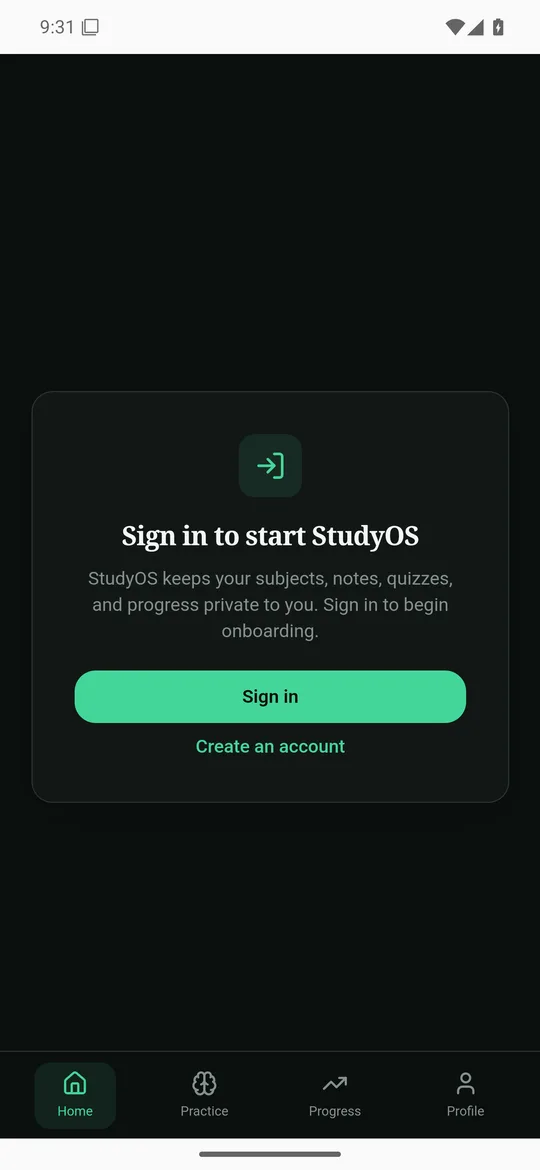
On October 30, 2026 we took two public, MIT-licensed Base44 projects through it: StudyOS and Ascend. Ascend’s data is public, so we could check that it loaded. Both built for iPhone and Android on cloud machines, in about a minute per build, and opened on live devices. Without changes, StudyOS opened but couldn’t reach its backend. We couldn’t get StudyOS’s app id, so we tested the step 4 fix on Ascend, which runs on the same Base44 hosting. With it, Ascend loaded its live data on both phones. We didn’t do a store upload.
Base44’s docs describe its mobile app as a wrapper: “Your mobile app runs your published Base44 app inside a secure web view. This is a lightweight native wrapper around your web app that opens only your app’s URL” (Submitting your app to app stores, checked October 30, 2026). Base44 generates and signs an iPhone file and a Google Play file, and you submit them from your own App Store Connect and Play Console accounts. Downloading the files needs the Builder plan or higher.
The same docs list the limits:
com.base[app-id].app … You can’t choose or change your bundle ID or package name”. Base44 signs the Android file with its own upload key, which “You can’t download”.Which way to go:
If you use Base44’s files, VibeView can still help on Android: upload the APK, open it on a live Android phone, and share it as a link. We didn’t try Base44’s APK. The iPhone file only installs on a physical iPhone, so VibeView’s cloud iPhones can’t open it.
To build your own, you use Capacitor, a free tool that puts a web app inside a phone app. In this guide your built web app is copied into the phone app, so its pages load from the phone, not from your website. Capacitor builds for phones and tablets, not TV. VibeView also runs Apple TV, Android TV and Roku apps, but those need a framework that targets TV.
git clone <your repository URL> in a terminal and cd into the new folder. With a ZIP, unzip it, then run git init, git add -A and git commit -m "Base44 export" in the folder, because cloud builds need a git repository.app.base44.com/apps/<app id>/editor/.... The app id is the part after /apps/.https://your-app.base44.app. We tested a .base44.app address, not a custom domain.npm and npx, the two commands this guide uses.You don’t need a Mac, Xcode or Android Studio.
Install your project’s packages. In a terminal, in the project folder:
npm installnpm install downloads the packages your app uses. It also writes package-lock.json, a lockfile: the list of exact package versions, so every cloud build installs the same ones. You commit it in step 6.
Add Capacitor. First pick your app’s bundle identifier, its permanent ID in both stores, in reverse-domain form such as com.yourcompany.myapp. Neither store lets you change it later. Then:
npm install @capacitor/core @capacitor/ios @capacitor/android
npm install -D @capacitor/cli
npx cap init "My App" com.yourcompany.myapp --web-dir dist
--web-dir dist tells Capacitor which folder holds your finished web app. cap init names the app and writes its config file, capacitor.config.ts or capacitor.config.json depending on the project. Either is fine.
Make the cloud build use your Node.js version.
Create a file named .nvmrc in the project folder that names your Node.js version, such as 24. node --version shows yours. On macOS or Linux, this writes it for you:
node --version > .nvmrcCloud builds use the Node.js version named in .nvmrc (which Node.js cloud builds use). Without it, the cloud build may use a different npm than yours, and the install can fail. In our run it did, with Missing: chokidar@5.0.0 from lock file. Use Node.js 22, 24 or 26: cloud builds don’t have the odd-numbered releases.
Let the app reach your Base44 data. As exported, the app sends its requests to whatever address it was loaded from. On your published site that’s Base44, so it works. Inside the phone app it’s the phone itself, so every request fails. The app id is missing too: the app reads it from a .env file that git ignores, so cloud builds never see it.
Open the project folder in your code editor, then open src → api → base44Client.js. Before you change it, look inside its createClient({ … }) for lines the code below doesn’t have, and copy them into the new version. Then replace everything in the file with this, and put your app id and published address in the two quoted values:
import { createClient } from '@base44/sdk';
import { Capacitor } from '@capacitor/core';
import { appParams } from '@/lib/app-params';

const { appId, token, functionsVersion, appBaseUrl } = appParams;

const APP_ID = 'your-app-id'; // from the editor's address
const PUBLISHED_URL = 'https://your-app.base44.app'; // your live app's address
// True only inside the phone app, never in a browser.
const inApp = Capacitor.isNativePlatform();

export const base44 = createClient({
  appId: inApp ? APP_ID : appId,
  token,
  functionsVersion,
  analytics: { enabled: false },
  serverUrl: inApp ? PUBLISHED_URL : '',
  appBaseUrl,
});
In a browser inApp is false, so your web app keeps exactly the settings it had. We didn’t publish this change back through Base44, so check your web app after you do. The app id isn’t a secret: it’s in your editor’s address, and your published site sends it with every request.
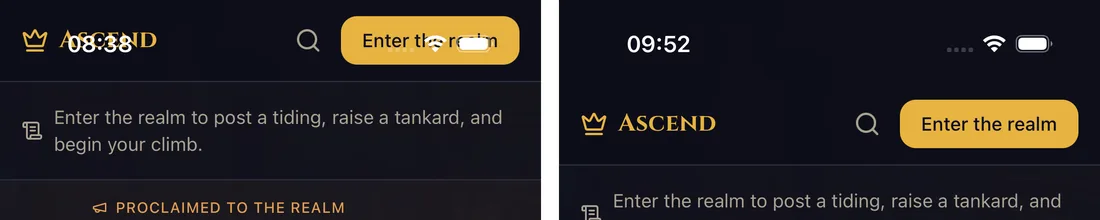
Keep the header below the iPhone’s status bar. Without this, a header that stays at the top of the screen sits under the clock and the Dynamic Island. It takes two changes.
First, in index.html in the project folder, find the line that starts with <meta name="viewport" and make it:
<meta name="viewport" content="width=device-width, initial-scale=1.0, viewport-fit=cover" />Then search the src folder for sticky top-0 and fixed top-0 (in VS Code: Edit → Find in Files). A match looks like <header className="sticky top-0 …">. Change only bars that show at the top of a phone screen, and skip matches that start with hidden or are in src/components/ui. Inside those quotes, add a space and pt-[env(safe-area-inset-top)]. For example, className="sticky top-0 bg-white" becomes className="sticky top-0 bg-white pt-[env(safe-area-inset-top)]". The header then starts below the clock and stays there while you scroll. On Android it changes nothing.
Create the native projects and save everything in git.
npm run build
npx cap add android
npx cap add ios
git add -A
git commit -m "Add Capacitor"
This creates the android/ and ios/ folders. The cloud build copies your web app into them, but doesn’t create them, so they have to be in your repository. Don’t push yet. The cloud build uploads the project from your computer, so it doesn’t need the files on GitHub. Before you push, read Keeping Base44 and the app in step.
Install the VibeView CLI and sign in.
npm install -g vibeview
vibeview login
The login command prints a link and tries to open your browser. Approve the sign-in there.
Start the cloud builds.
vibeview build --cloud --platform android --profile preview
vibeview build --cloud --platform ios --profile preview
--profile preview asks for a finished build that doesn’t need a development server on your computer. The CLI sees the Capacitor project and suggests a build command for each platform: install, npm run build, npx cap sync, then Gradle or Xcode. Accept it, and choose Create a new app from this build when it asks which app to use. It saves the answers to vibeview.json. Run this first build in a terminal rather than in CI, because the CLI asks these questions there.
Each build runs on a fresh cloud machine, the iOS one on a Mac, and streams its log to your terminal. In our run each build took about a minute. A successful build creates the app in VibeView from the built app, with its name, ID and icon. Each platform becomes its own app in VibeView. The full reference is in Cloud Builds.
The quickest way is the dashboard: open the build’s page and choose Run this build, or pick the app on Devices and start a session. From a terminal:
vibeview dev --standalone --platform ios --build <build_id> --detachGet the build id from vibeview list-builds <app_id>, and the app id from vibeview list-apps. If the CLI answers --app is required, add --app <app_id>. The command prints the session’s link and returns. To stop it, run vibeview dev-stop. Streaming minutes count for as long as a session runs, and a session nobody uses ends on its own. In our run the iPhone session was ready in about 20 seconds and the Android one in under 10.
Changes you make in Base44 don’t reach the app by themselves. With GitHub sync, pull them and run the cloud build again. If you exported a ZIP, unzip the new one over your project folder. That brings back the original package.json, index.html and base44Client.js, so run the two npm install lines from step 2 again, redo steps 4 and 5, and commit. Your android/ and ios/ folders, Capacitor config, vibeview.json and .nvmrc stay. We haven’t tried this. GitHub sync saves you the work.
Open Sharing in the dashboard, click Share an app, pick the app, and choose Send a link. The person opens your app on a live phone in a browser tab, without installing anything. Each visit counts toward your plan’s streaming minutes. Sharing your app has the options.
This is the biggest difference from Base44’s own files.
403: disallowed_useragent, and Apple login doesn’t work either. Use the Base44 app files, or offer email and password login instead” (Managing login and registration, checked October 30, 2026). On a cloud iPhone it failed differently for us. With the code from step 4, the Google button just reloaded the app. With the published address set as appBaseUrl, it left the app and opened Safari, with no way back.Login.jsx file in src/pages that calls base44.auth.loginViaEmailPassword. That page is part of the app, so it stays inside it, and its requests go to the address from step 4. It should work, but we didn’t test it, because we had no account on these apps. After Sign out, or after a wrong password, Base44’s code opens a Base44 page that doesn’t exist inside the phone app, so you may see an error page. Try both before you ship.Login.jsx of its own, ask Base44 to add an email-and-password sign-in page to the app, or use Base44’s own files.An app whose content people can see without signing in works either way, as Ascend did.
The store path is the same as for any Capacitor app, and our Lovable guide walks through it: create the app in App Store Connect and Play Console, set up signing in VibeView, then build with vibeview build --cloud --production and upload with --auto-submit or vibeview submit. Your app keeps your own bundle identifier and signing key. We didn’t run a production build or a store upload for these projects.
Apple’s guideline 4.2 says: “Your app should include features, content, and UI that elevate it beyond a repackaged website” (App Review Guidelines, last updated October 16, 2026). A wrapped web app is close to that line, whether Base44 wraps it or you do. Use phone features through Capacitor plugins, handle a lost connection gracefully, and remove anything that only makes sense on a website. Nobody can promise approval.
Base44’s GitHub sync is two-way: Base44 commits its changes to the repository, and changes merged into the main branch come back into Base44 (Base44 GitHub integration, checked October 30, 2026). Its docs don’t say how Base44 treats files it didn’t create, such as android/, ios/, your Capacitor config file, vibeview.json and .nvmrc, or whether its AI keeps your changes to base44Client.js and index.html. We haven’t tested it. After you push, make a small change in Base44 and check that those files and changes are still there. If you’d rather not risk it, keep the Capacitor files on another branch and merge Base44’s changes into it before each build.
With the files and vibeview.json on GitHub, the VibeView GitHub App can build every push. Base44 commits each change it makes, and each build uses build minutes, so choose which branches it builds.
src/api/base44Client.js. The build log shows [base44] Warning: VITE_BASE44_APP_ID is not set either way, so it doesn’t tell you whether step 4 is in.npm ci fails within seconds with Missing: … from lock file. The cloud build’s npm differs from the one that wrote your lockfile. Add the .nvmrc from step 3, or pass your Node.js major version to the build, for example vibeview build --cloud --node 24.viewport-fit=cover part is easy to miss.npx cap add fails with Could not find installation of TypeScript. The project has a capacitor.config.ts but no TypeScript. Delete the file and run npx cap init again, which then writes capacitor.config.json.Yes, in a limited way. On the Builder plan or higher, Base44 generates App Store files that show your published web app in a web view, and you submit them yourself through App Store Connect. For your own bundle identifier, native plugins or a look at the app before TestFlight, wrap the exported code with Capacitor as this guide does.
Either download Base44’s App Store file and upload it from App Store Connect, or build your own app with Capacitor and upload it with VibeView, as the store section of this guide describes. Apple reviews both the same way.
Not with Base44’s own files: its docs say there’s no direct install file for iPhone. With your own Capacitor build, yes. VibeView builds it on a cloud Mac and opens it on a live iPhone in your browser, with no Mac on your side.
Yes, a little. The app needs your app id and your published address to reach its data (step 4), and a header that stays at the top needs two small changes on iPhone (step 5). In a browser the changed code keeps your web app’s original settings; check your published site after Base44 picks up the change.
Not in an app you build yourself. Base44’s docs say Google and Apple login only work in the app built from Base44’s own files. Use an email-and-password sign-in page inside your app, or Base44’s files.
Yes. The phone app is your Base44 front end built into a native app. It reads and writes the same Base44 backend as your published site.
Open a live iOS simulator, Android emulator, Apple TV, Android TV or Roku in your browser.
Start free